The brief
Scheduling was spread across the platform, and every part worked differently
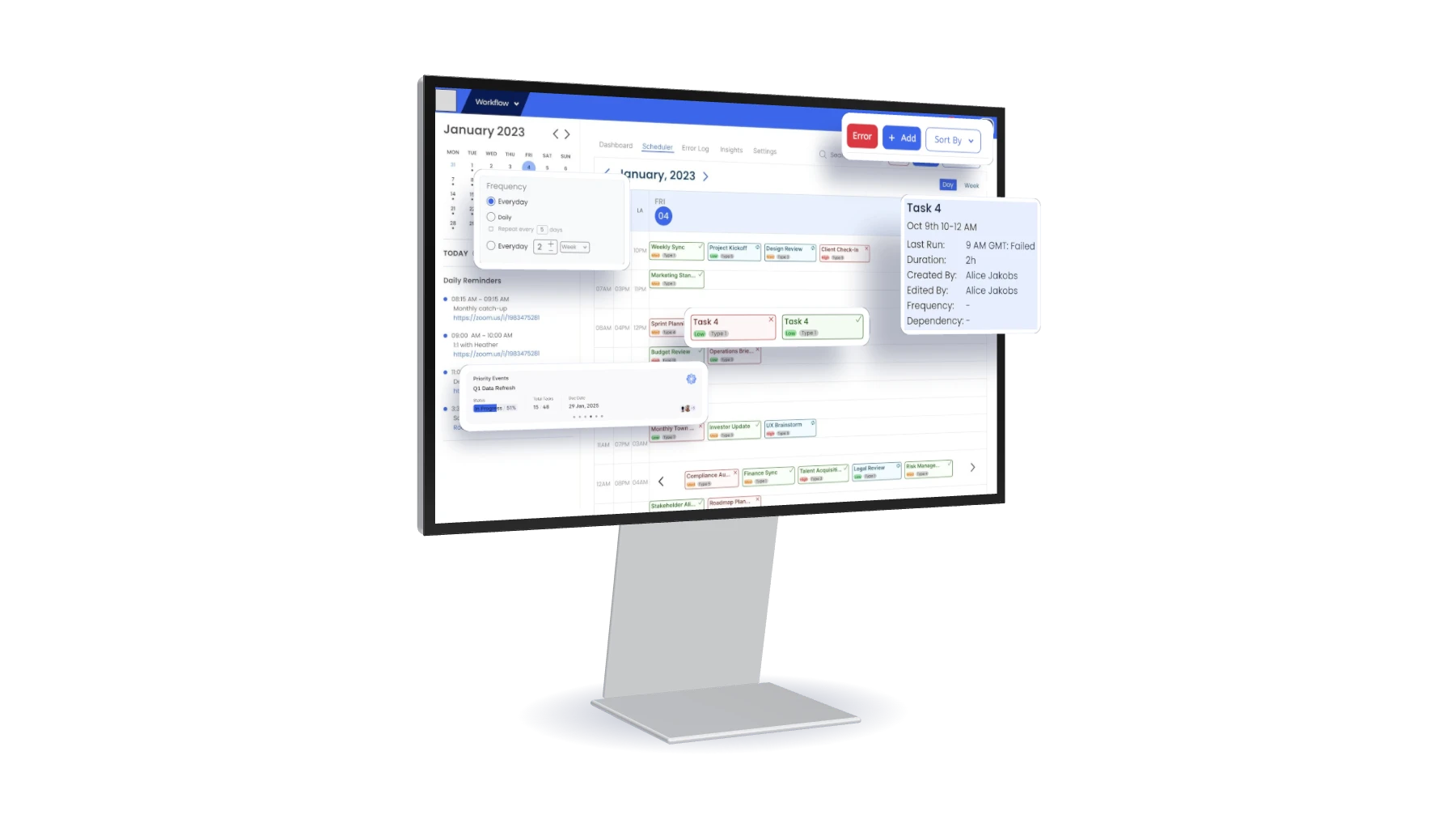
Admins couldn't easily see what was running, what had failed or what was late, so they tracked jobs by hand. One failed run can break a forecast or a report. We had 7 weeks, no access to the live product, and the client's design system to work within.
Two kinds of user
Admin
Watches every job for errors and clashes.
Builder
Sets up and fixes their own jobs.
Each job carries 13 properties, from time zone and frequency to dependencies and retries. On top of that, the system spreads jobs booked for the same hour across that hour (jittering), so a job can run later than it was scheduled.
Research
We started from the tools people already know how to read
Research questions
- How do people who run scheduled jobs check on them today?
- What does an admin need to see straight away, and what can wait a click?
- Which layouts do people already know how to read?
What we took into the design
- Use a calendar, because people already know how to read one.
- Make "what broke?" one click away.
- Give every status an icon and a border as well as a colour.
- Build it from small parts that can drop into any part of the platform.
User flow
Everything starts on the dashboard and splits into four jobs: monitor, create, recover and change.
Explore
We tried a timeline first, then moved to a calendar
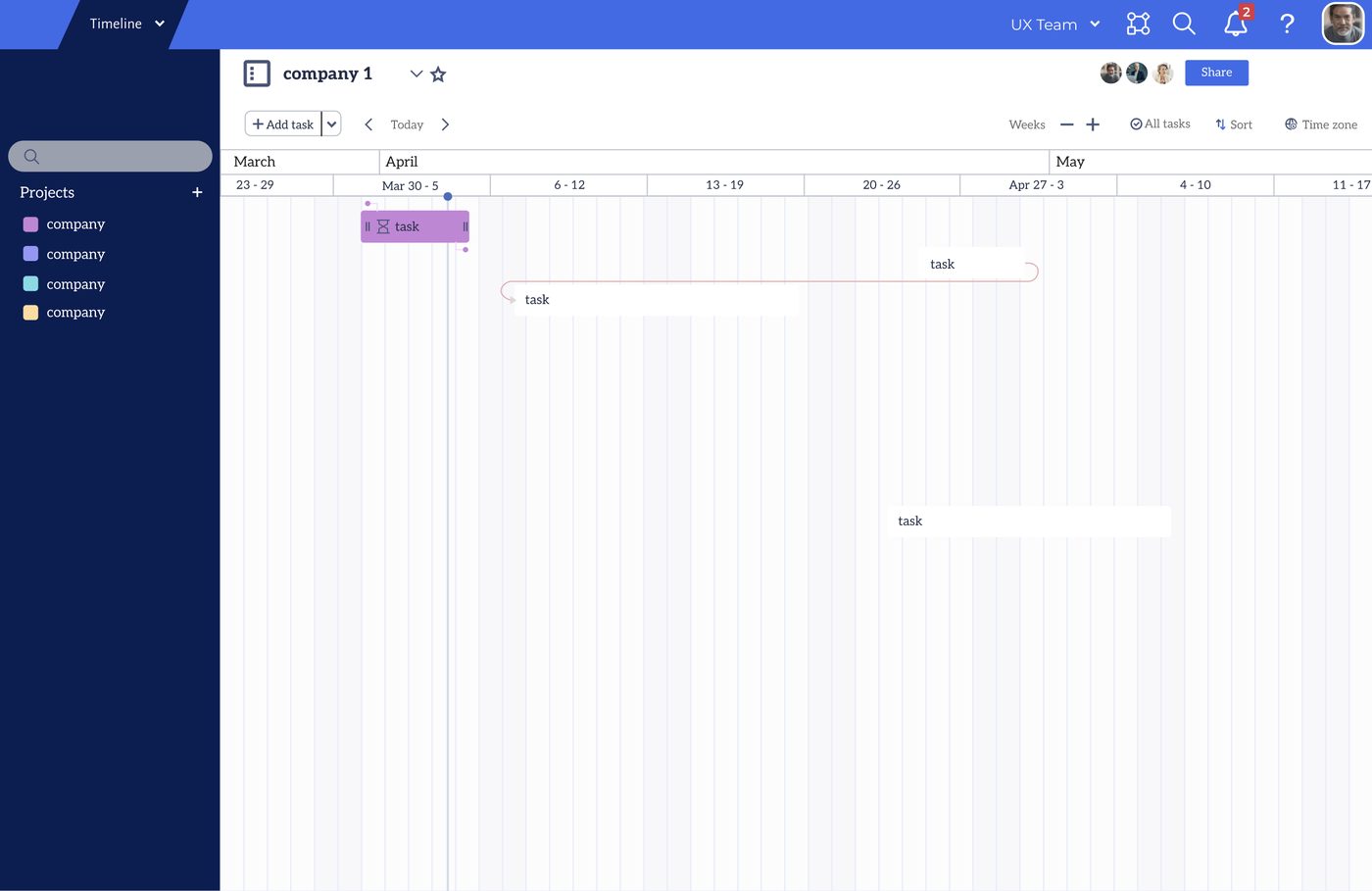
Horizontal timeline
Direction AGood for long jobs, but crowded on a busy day.
Good at
- Linking jobs that depend on each other
- Jobs that run for days
Struggled with
- Lots of jobs in one hour
- Comparing time zones
Vertical calendar
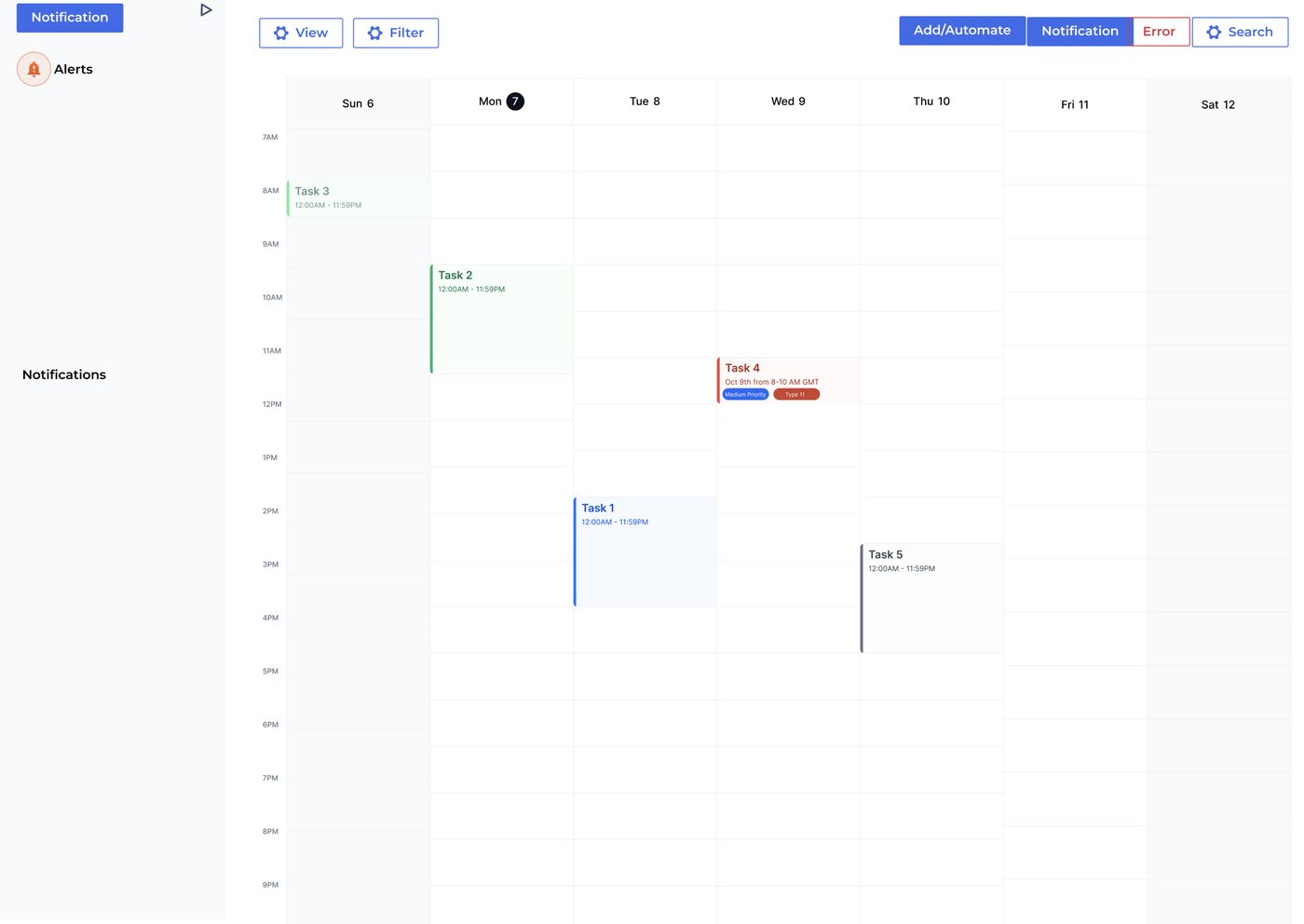
✓ Direction B · chosenReads like any calendar app.
Good at
- A familiar layout
- Time zones as columns
- Jobs side by side in one hour
Struggled with
- Dependencies are harder to see
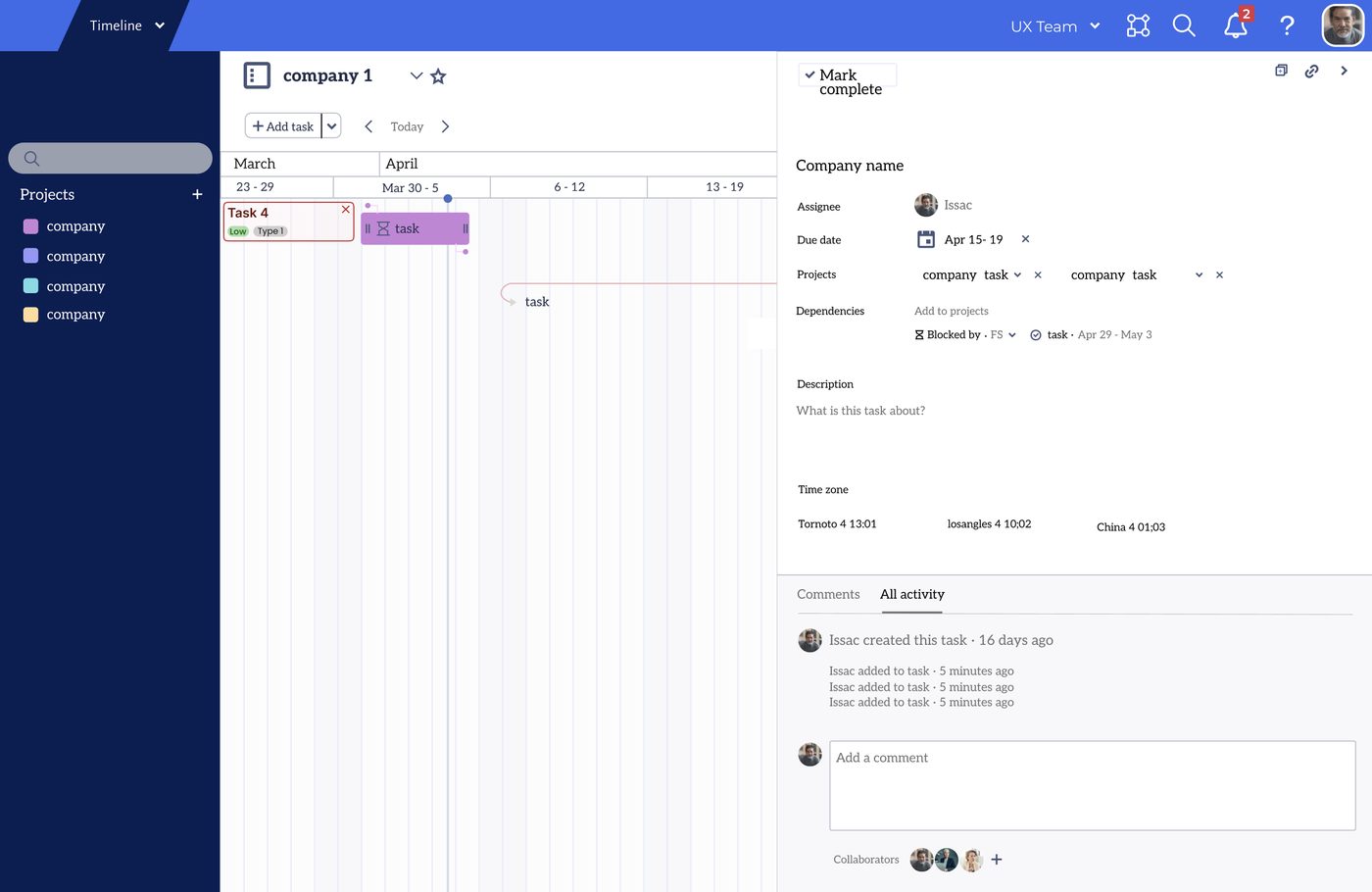
We chose the calendar because admins mostly check one busy day, and everyone already knows how to read one. The timeline’s dependency links moved into the job details.
Design decisions
Six decisions that shaped the final design
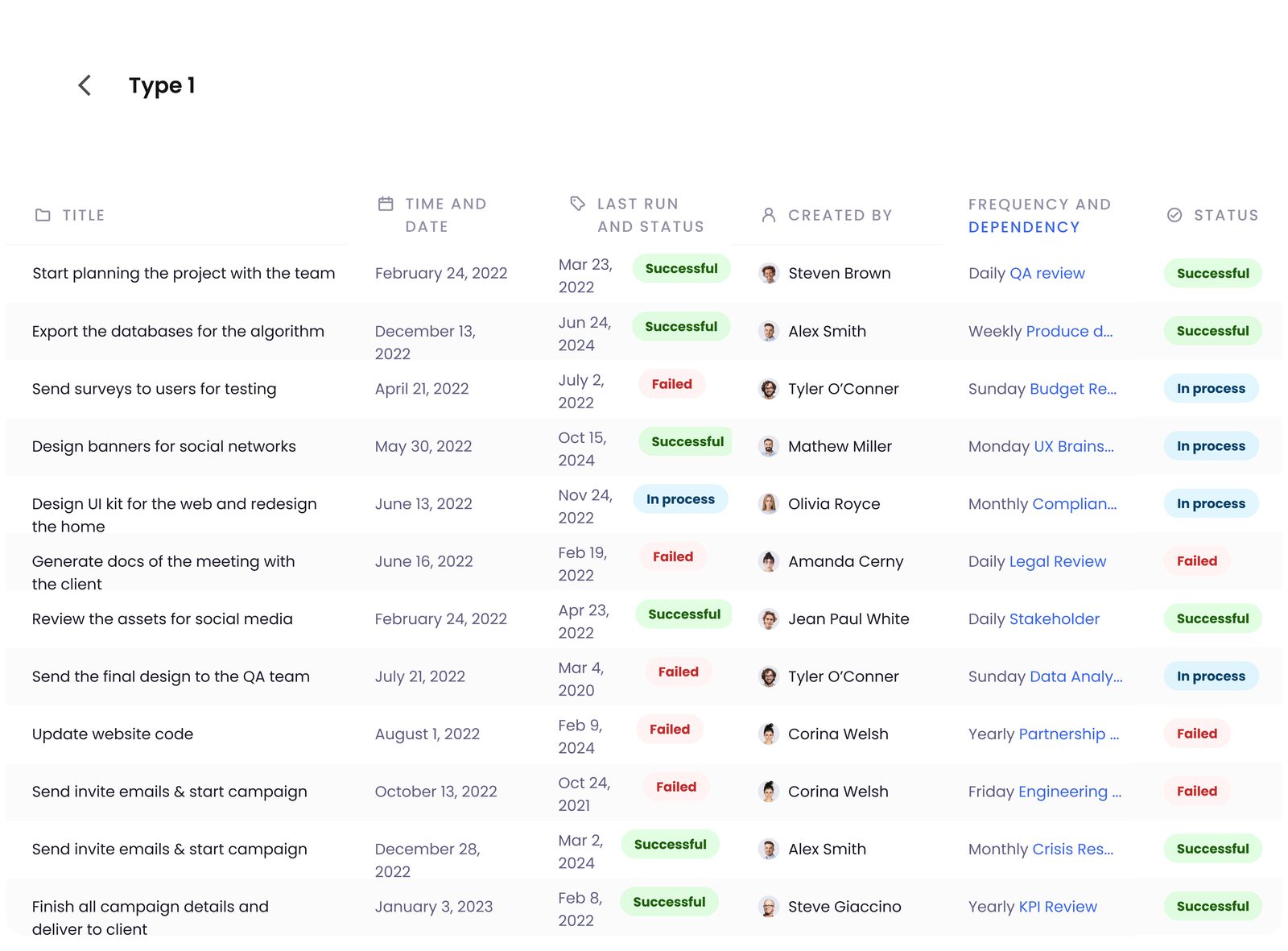
Try it. Filter by status, or press Error to switch to the error view.
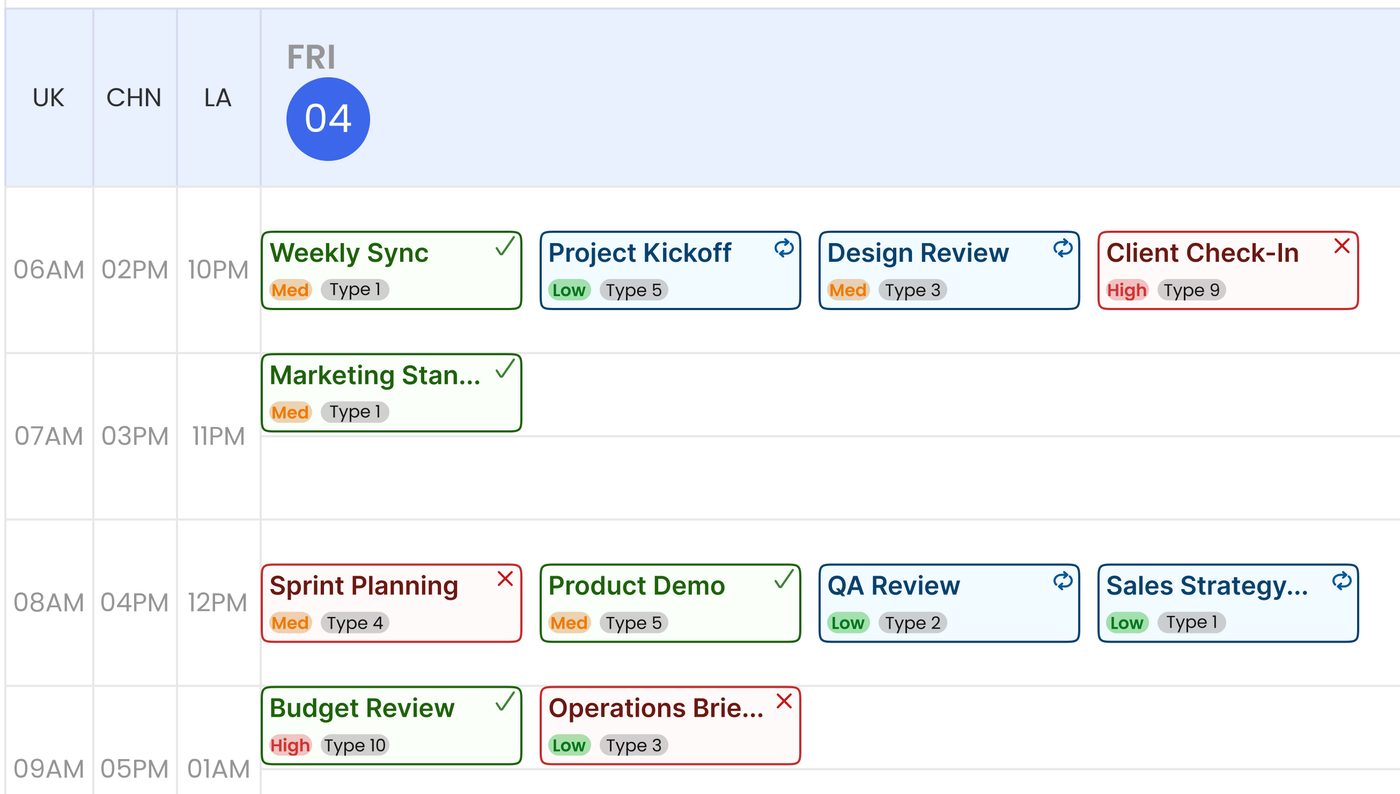

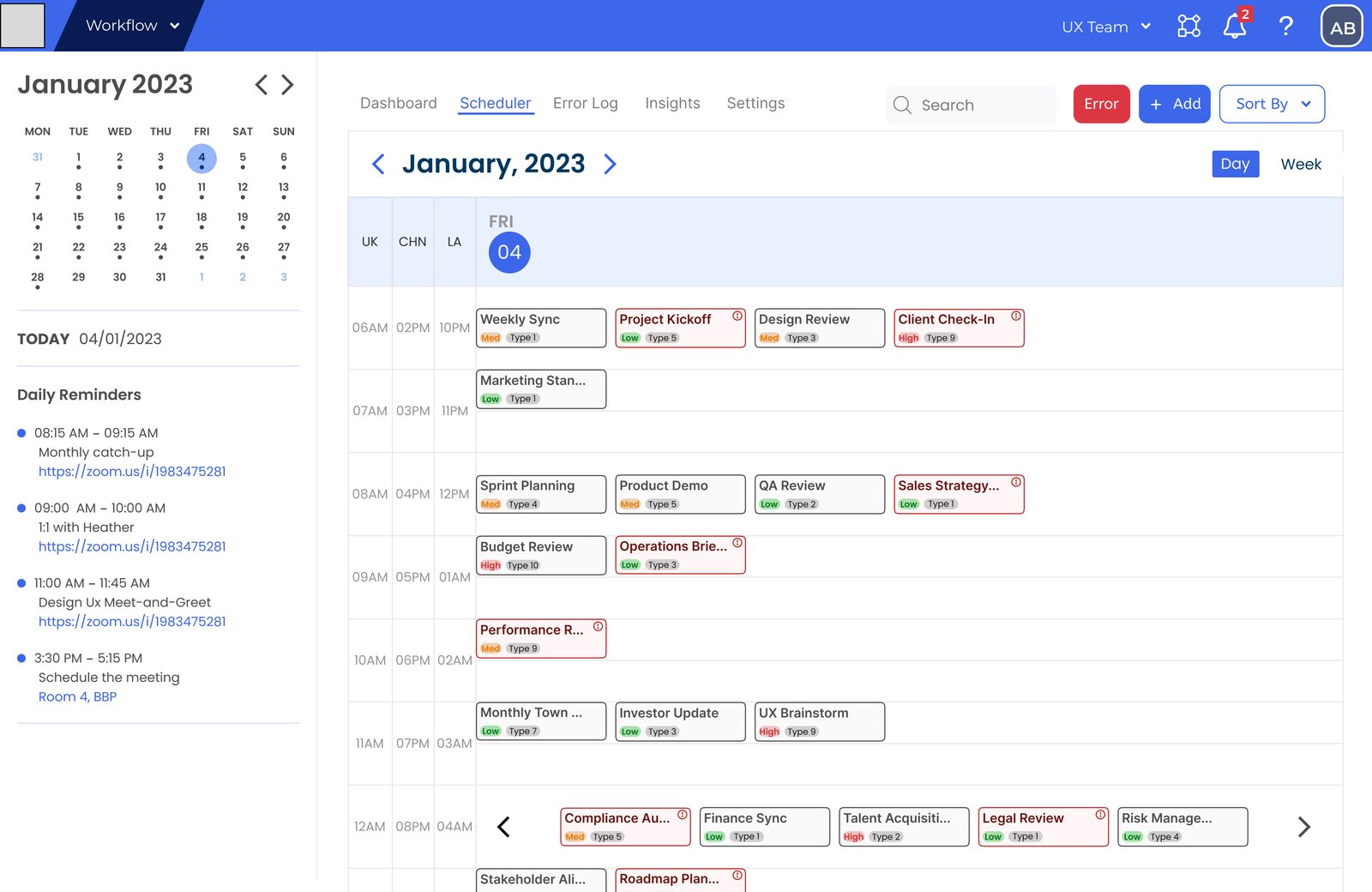
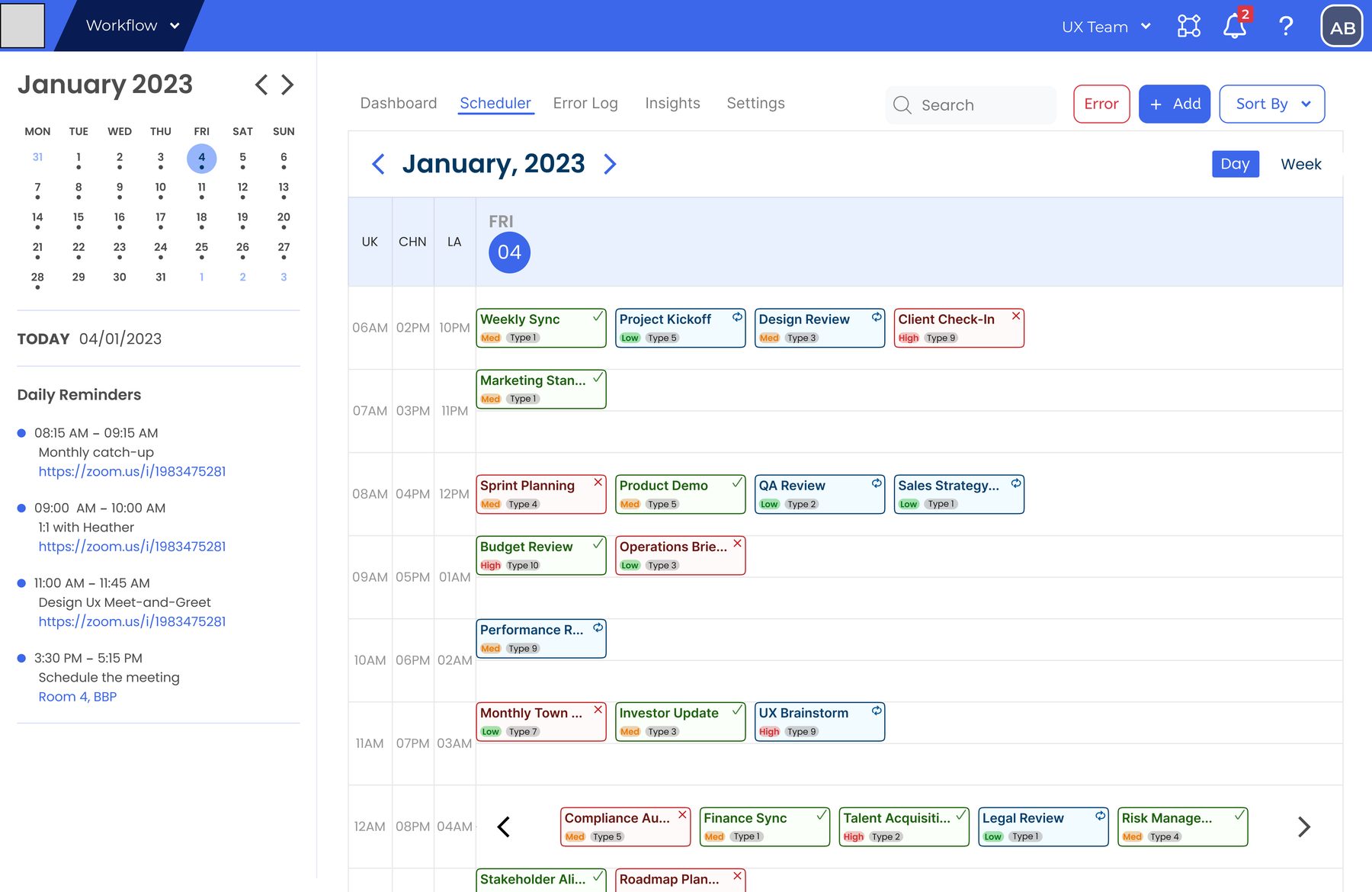
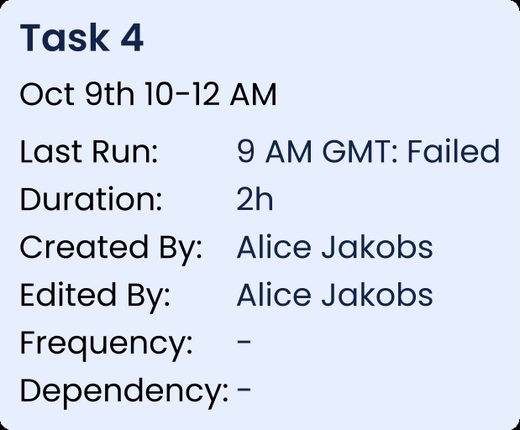
A job has 13 properties, but a card in a busy calendar only has room for three: status, priority and type. Clicking the card opens the rest, and clicking the type tag lists every job of that type.
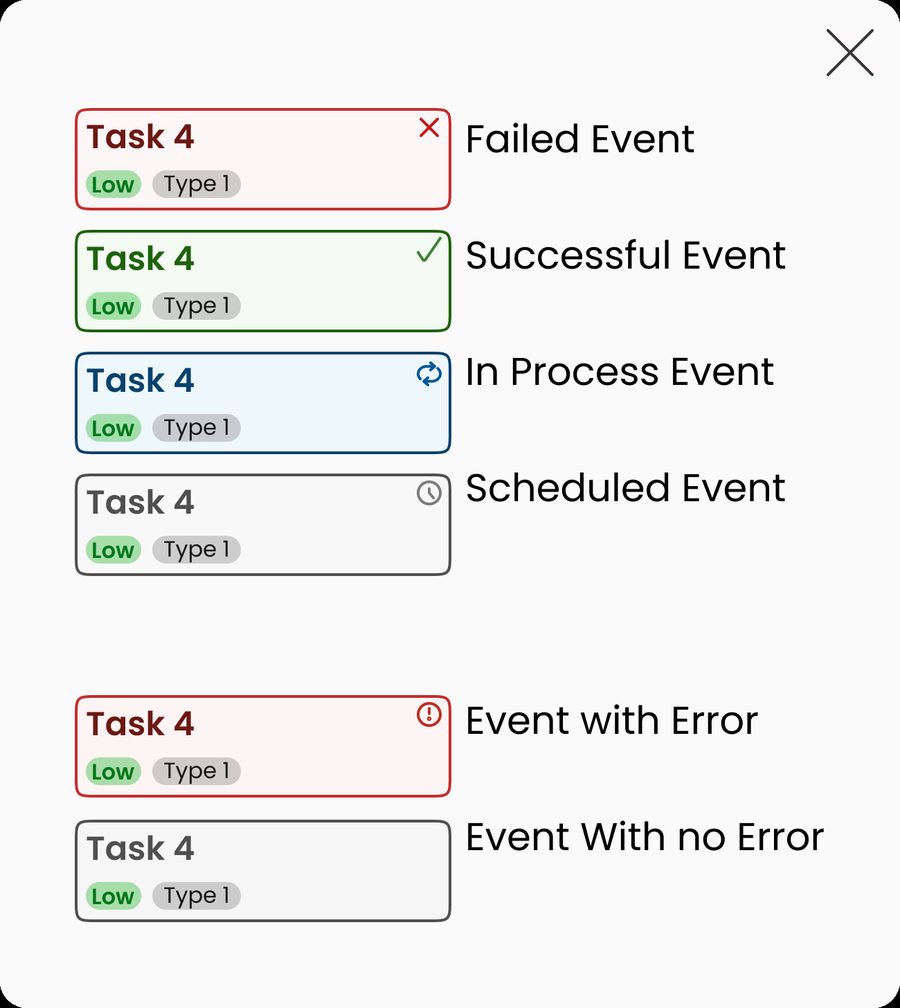
- 1StatusBorder, fill and icon change together: ✕ failed, ✓ successful, ↻ in process, a clock for scheduled.
- 2Priority tagLow, Med or High. Just a label, to help people scan.
- 3Type tagClick it to see every job of the same type in one list.
- 4The cardClick it for last run, duration, owner, frequency and dependency.
- 1
People need to tell failed, running, done and scheduled apart in a split second, including people who are colour blind. WCAG says colour can't be the only signal, so each state also has an icon that works in greyscale and a border that keeps it readable on a busy grid.
Teams run jobs across the UK, China and the US. A time zone switcher would hide two of them at any time, so we fixed up to three columns next to the hours. Every tester said this helped. The limit is three zones.
On a busy day errors get lost. The Error button sits next to Add. When it's on, it turns red and every card shows "has an error" or "no error", so admins don't have to build a filter to find failures.
Jittering puts lots of jobs in the same hour. Squeezing them made the names unreadable, so cards keep their width and arrows appear when an hour is full. You can't see every job in that hour at once, but you can read all of them.

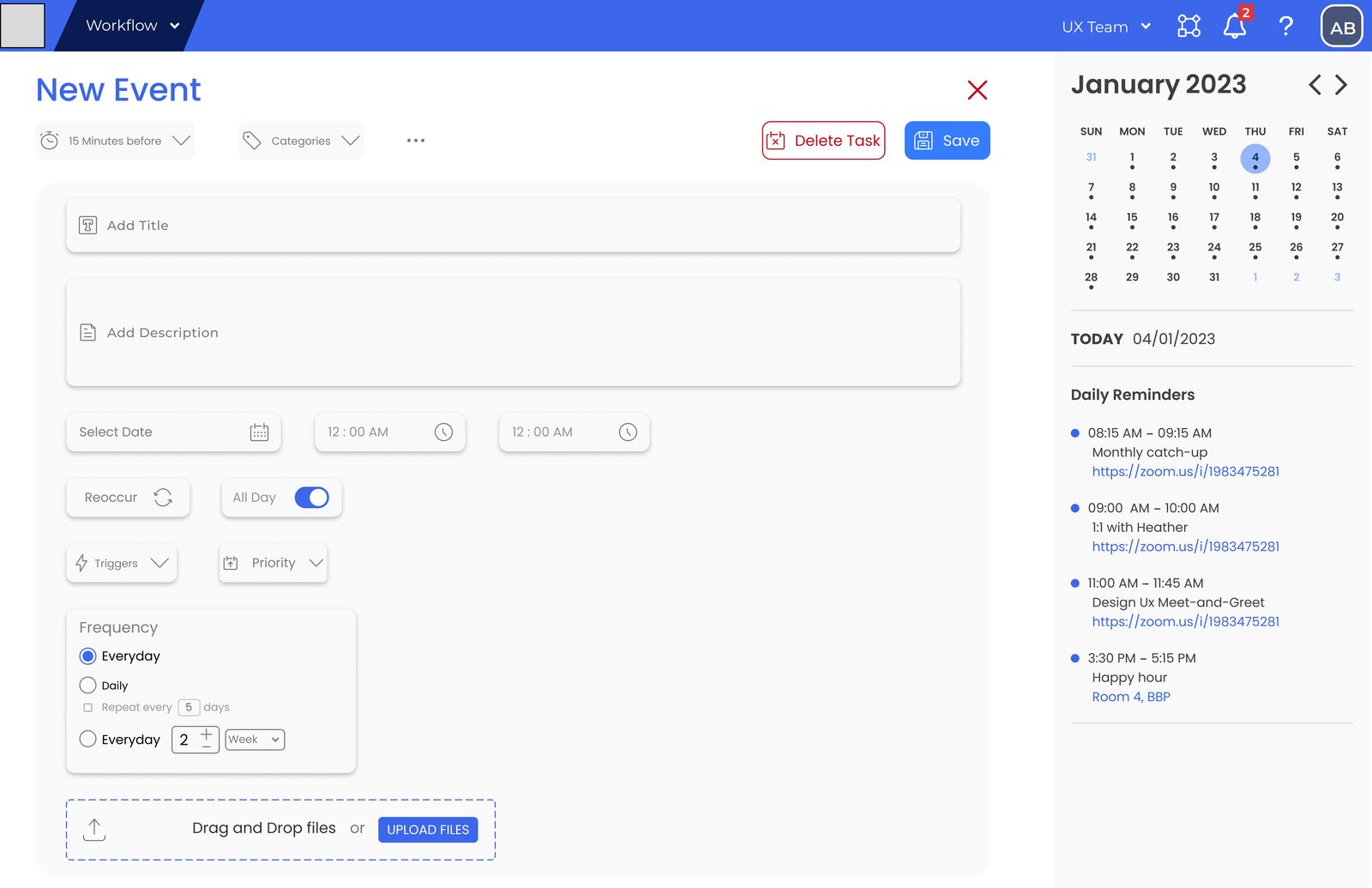
What and when first, then how often, then triggers and priority, with the month view and today's reminders beside it. The same form edits and deletes a job. Testers called it "very well structured".
Built from parts
We used atomic design. Buttons, dropdowns and the main colour came from the client's system, and we added what the scheduler needed: event cards in every state, tags, the properties card and the filter menu. We tried a few versions of parts like the Sort button and the Add icon before settling.
Testing
Six people tested the prototype, and we made seven changes
- QuestionnaireTheir background. 5 of 6 had used planning software.
- TasksReal tasks in the prototype, thinking aloud.
- SUS surveyThe standard usability score.
- InterviewA short chat afterwards, recorded with consent.
SUS score per participant (0–100)
Average SUS
82.1
The testers were postgraduate students, so I treat it as an early sign.
What we changed
Some testers read red as "high priority" instead of "failed", and the time zone columns looked like random numbers. Others wanted to filter by more than status, asked for a warning before a job fails, and couldn't find how to delete a task. So we added a status legend, more filters, reminders, search and a delete button. We also labelled the time zones, switched to AM/PM and made important jobs stand out more.
Outcome
A tested pattern that works anywhere on the platform
See it working
Short clips from our clickable prototype, sped up.
Creating a task: title, category, date and time, then how often it repeats.
A tour of the final screens
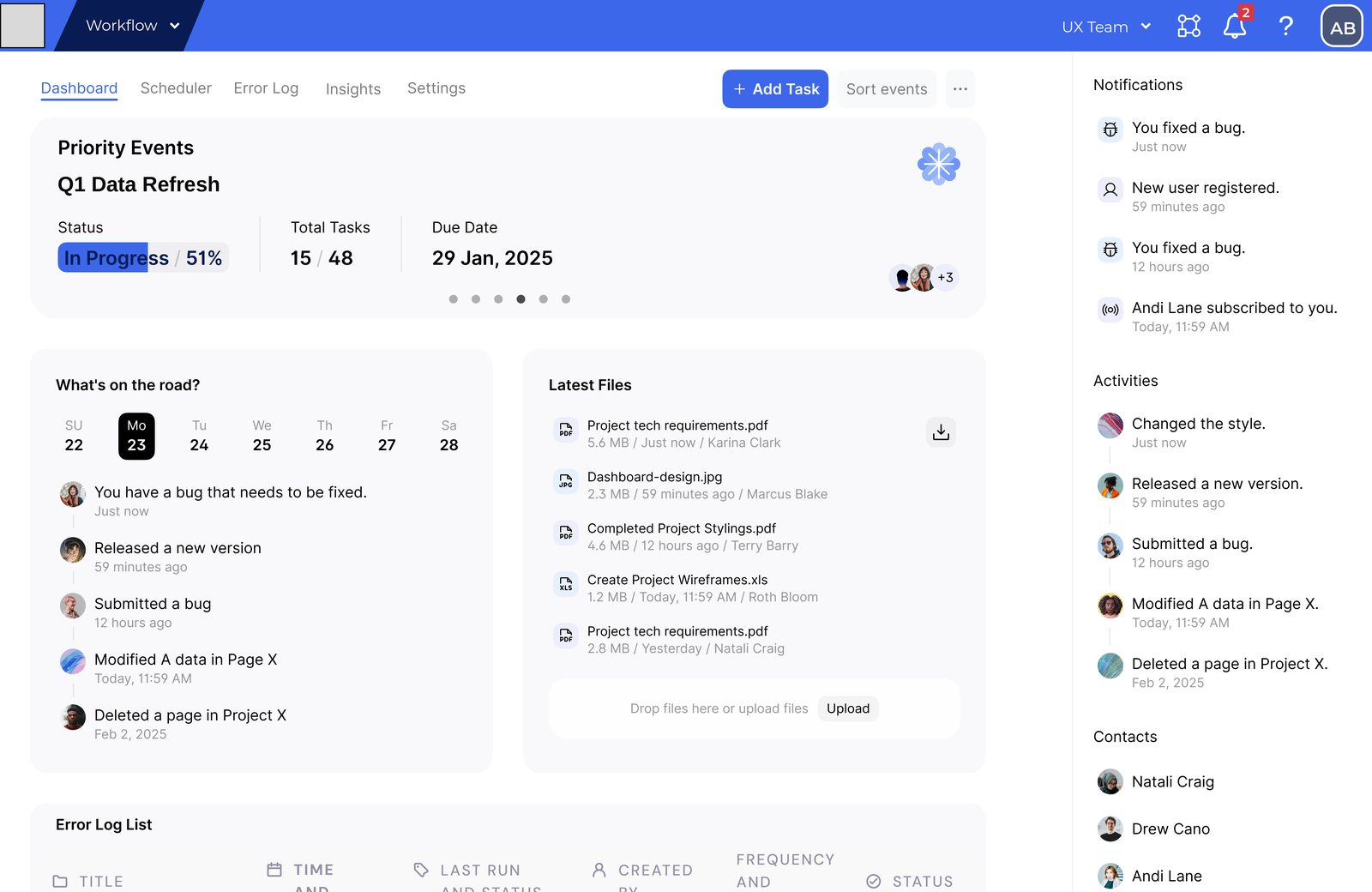
Dashboard
What needs attention before you open the calendar: priority jobs, the week ahead, latest files, the error list and notifications.
Scheduler
Every job in a day or week view, with three time zones down the side. Filter by status or press Error. Search, add and sort from the toolbar.
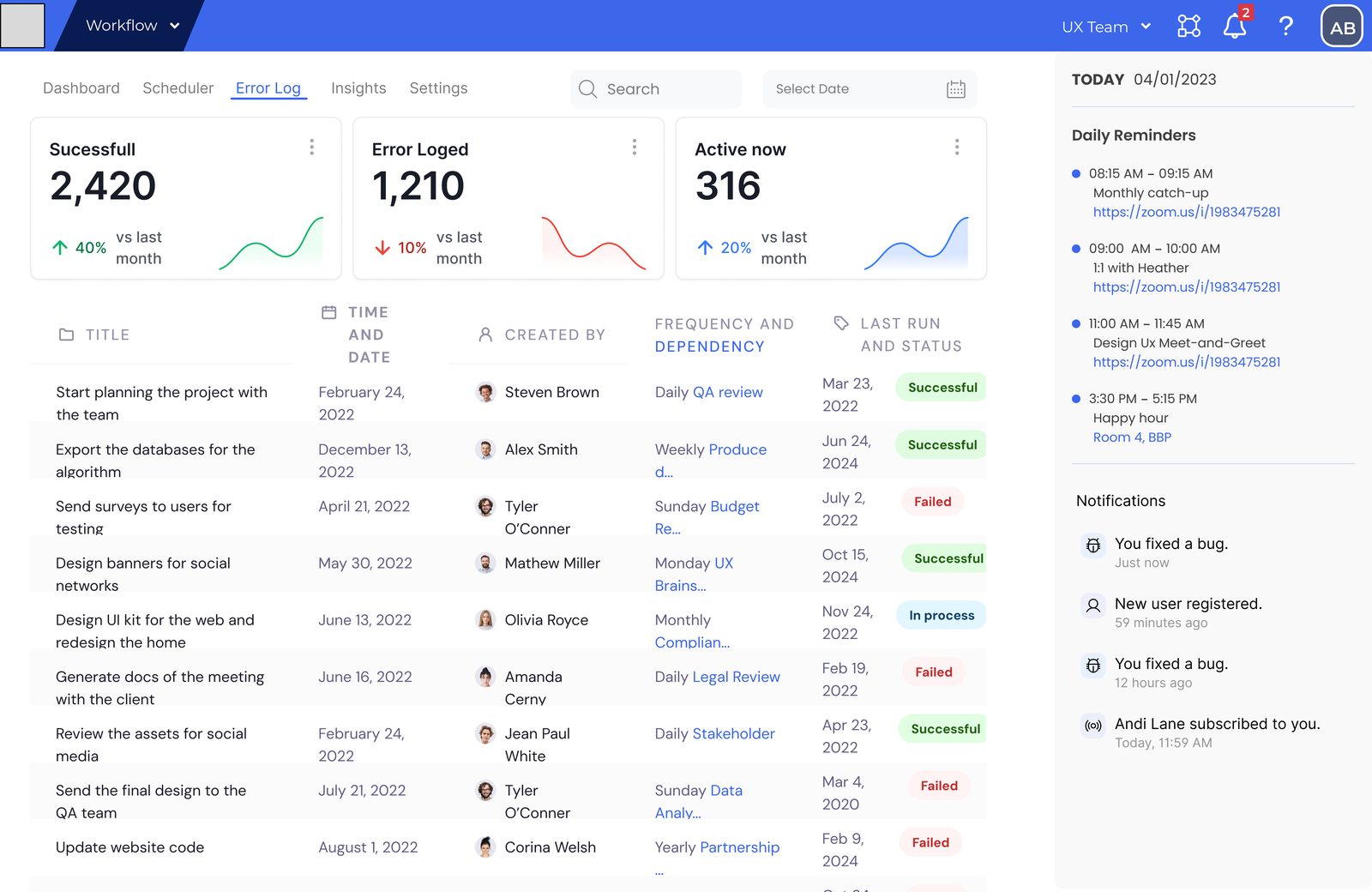
Error log
How the system did this month, and every run in one table.
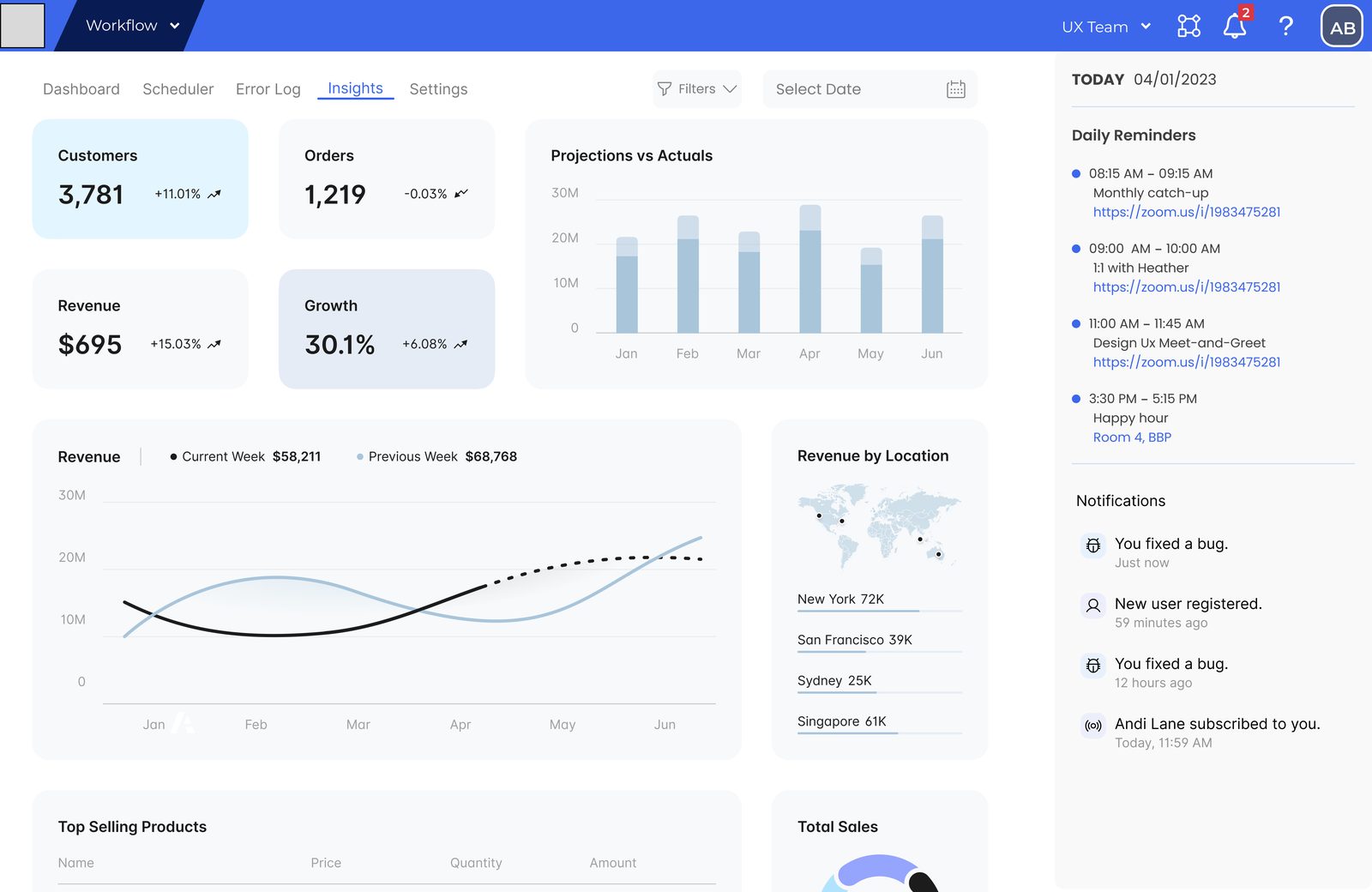
Insights
The business numbers the data feeds into, so a team can see why a failed job matters.
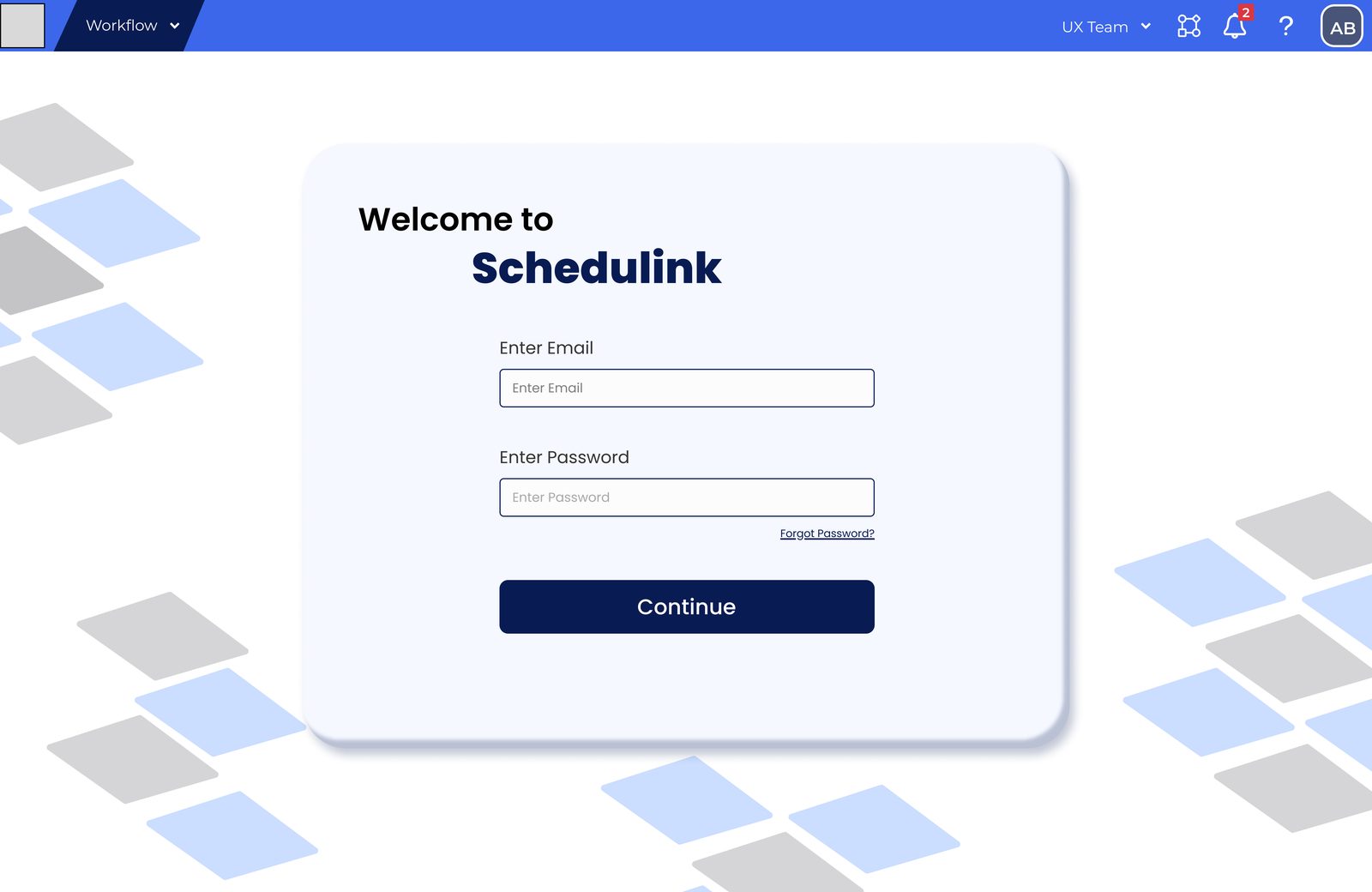
Log in
A simple way in, in the same style.
The legend, added after testing
It sits one click away and shows on first use, explaining the four statuses and the two error states.
What I learned
The biggest thing I learned is that a complex system doesn't need to be made simpler. It needs a clear order: what people see first, and what can wait a click. I also learned that accessibility is much easier to build in from the start than to fix later, and that even a small test shows you problems you've stopped noticing yourself.
What I'd improve
I'd give priority tags their own neutral style so they don't clash with status colours, show each job's scheduled window next to when it actually ran, and test with the client's own admins.