The problem
Help people with ADHD use their phones on purpose, without building another app that's hard to put down
Phones are built to hold your attention, and that's much harder to resist when filtering out distractions is already a daily struggle. Screen Time and Digital Wellbeing mostly count minutes, and many productivity apps add pressure with streaks and leaderboards. A well-being app is still an app, too. If people spend more time in it, it hasn't helped.
Who it's for
Adults with ADHD. These three traits shaped the design the most.
Attention
Filtering out distractions and keeping focus is hard, especially on a phone.
Impulsivity
A quick look at one app can turn into an hour.
Reward
Small wins you can see matter more than goals far away.
Research
I had no access to users, so I worked from published research on ADHD and digital well-being
From the papers to the design
Pick a finding to see what it changed in the app.
What I read
What I did
Looking at existing tools
| Tool | Good at | Missing |
|---|---|---|
| Apple Screen Time | Usage by app, limits, downtime | Support for focusing, or for building habits that replace scrolling |
| Digital Wellbeing | App timers, a usage dashboard, quieter notifications | Anything that adapts to the person, or progress beyond fewer minutes |
The gap: both measure usage and set limits. Neither helps you focus or build habits to replace scrolling, and neither adapts to the person.
Principles
Six rules from the research that I checked every screen against
Scope
The principles also decided what to leave out. I sorted features with the Pareto principle: the few that do most of the work sit in the middle, and anything that could cause overload, competition or more screen time stayed out.
Left outside
LeaderboardsCompetition can turn into anxiety.Gamified challengesA reason to overuse the app itself.Wheel of LifeMore to analyse instead of act on.Rewards from other apps and local eventsPulled the app away from its main aim.Life-goal visualsToo much for a first version.Advanced mindfulness trackingA short breathing exercise does the job.
Design
The whole app, feature by feature
How it's organised
The app has four tabs, each with one job. They sit in a standard tab bar where your thumb rests, with large labelled buttons (Fitts's and Jakob's laws). The first time you open the app, it asks what you'd like help with. The answer doesn't change anything in the app. It's there to help you get clear with yourself about how you want to use it.
Visual design
Soft blue and light coral are both calming colours, and they work well together. Teal is used for the rings and the logo, and deep teal for text. I chose Poppins because its round letters are easy to read at a glance. Every text and icon colour passes WCAG contrast.
#7EDCE6#69C0CA#D7F6F9#F89697#8E3B3B#FFF5F4#265D62In the logo, the o in "focus" becomes the sphere: a ring with one coral dot, the thing you're focusing on. The app icon is the same sphere.
The features
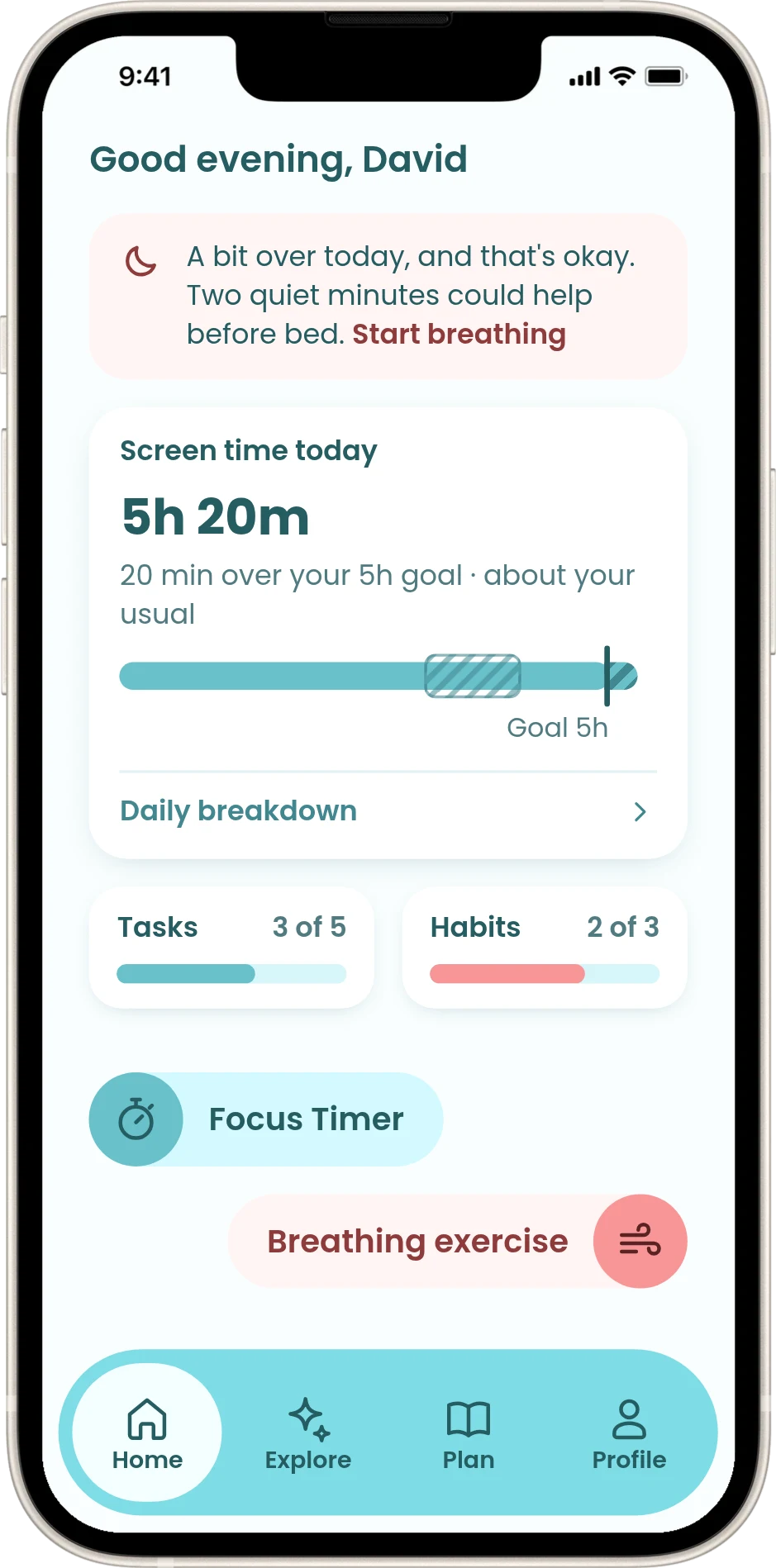
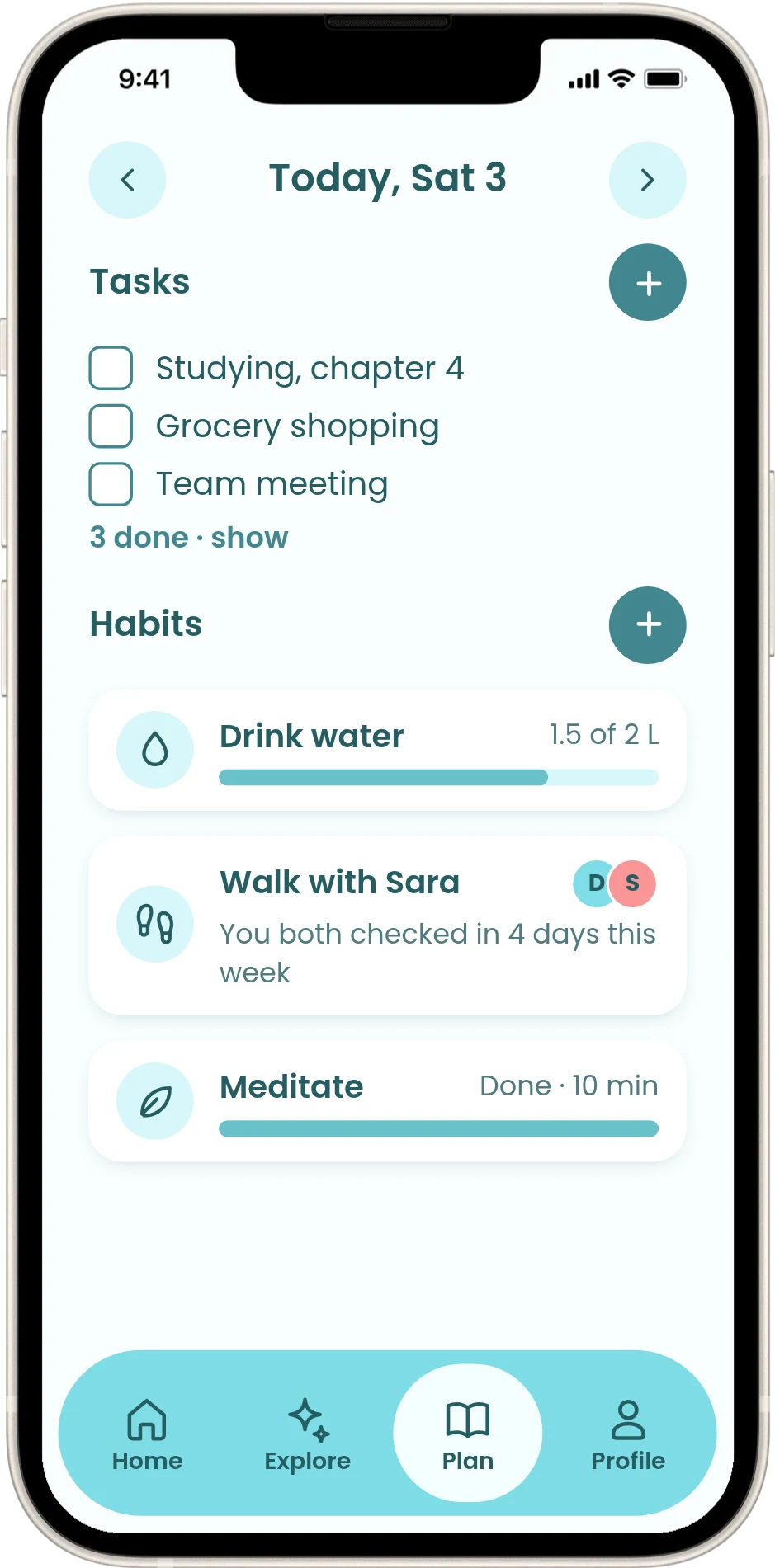
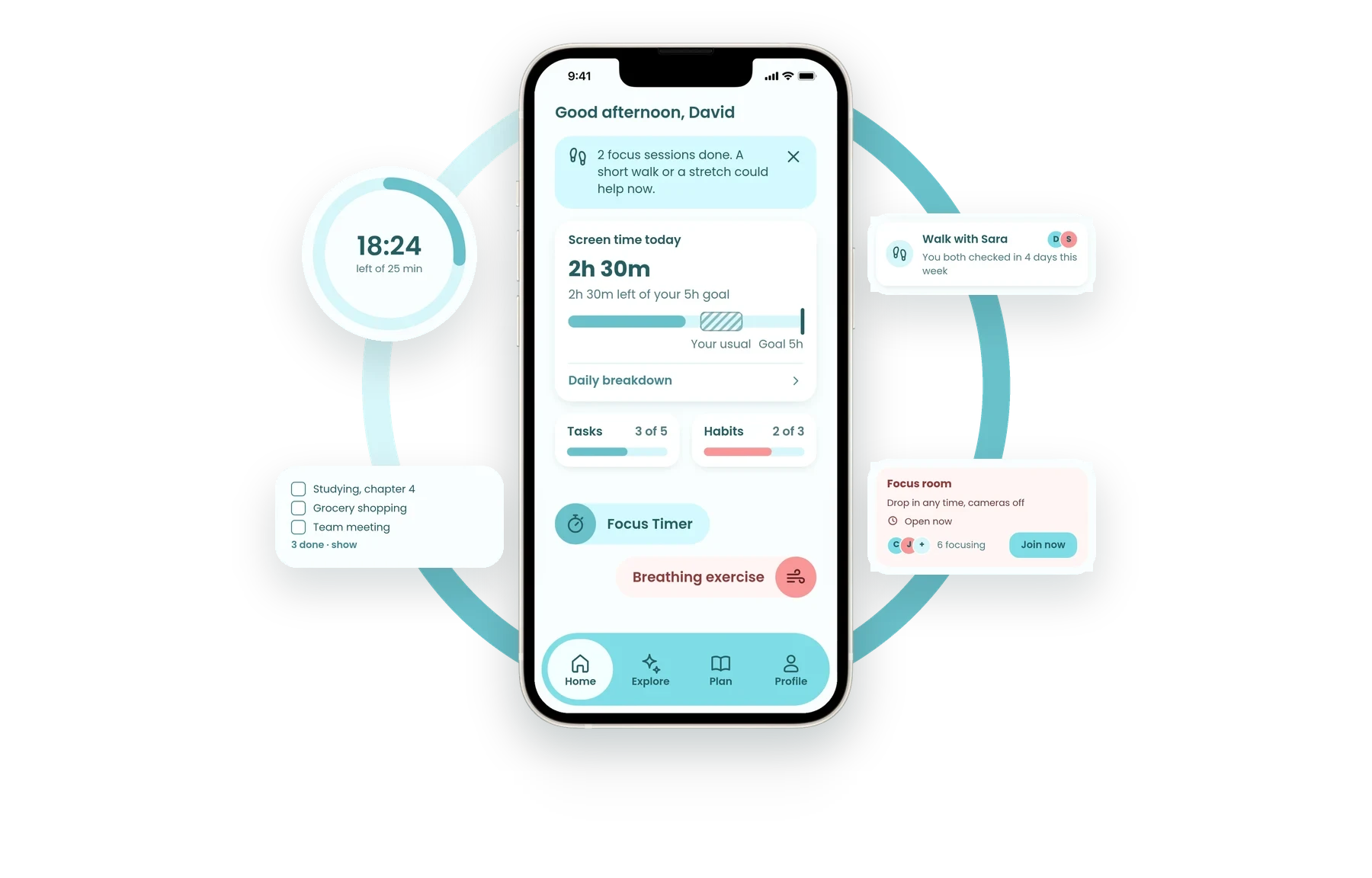
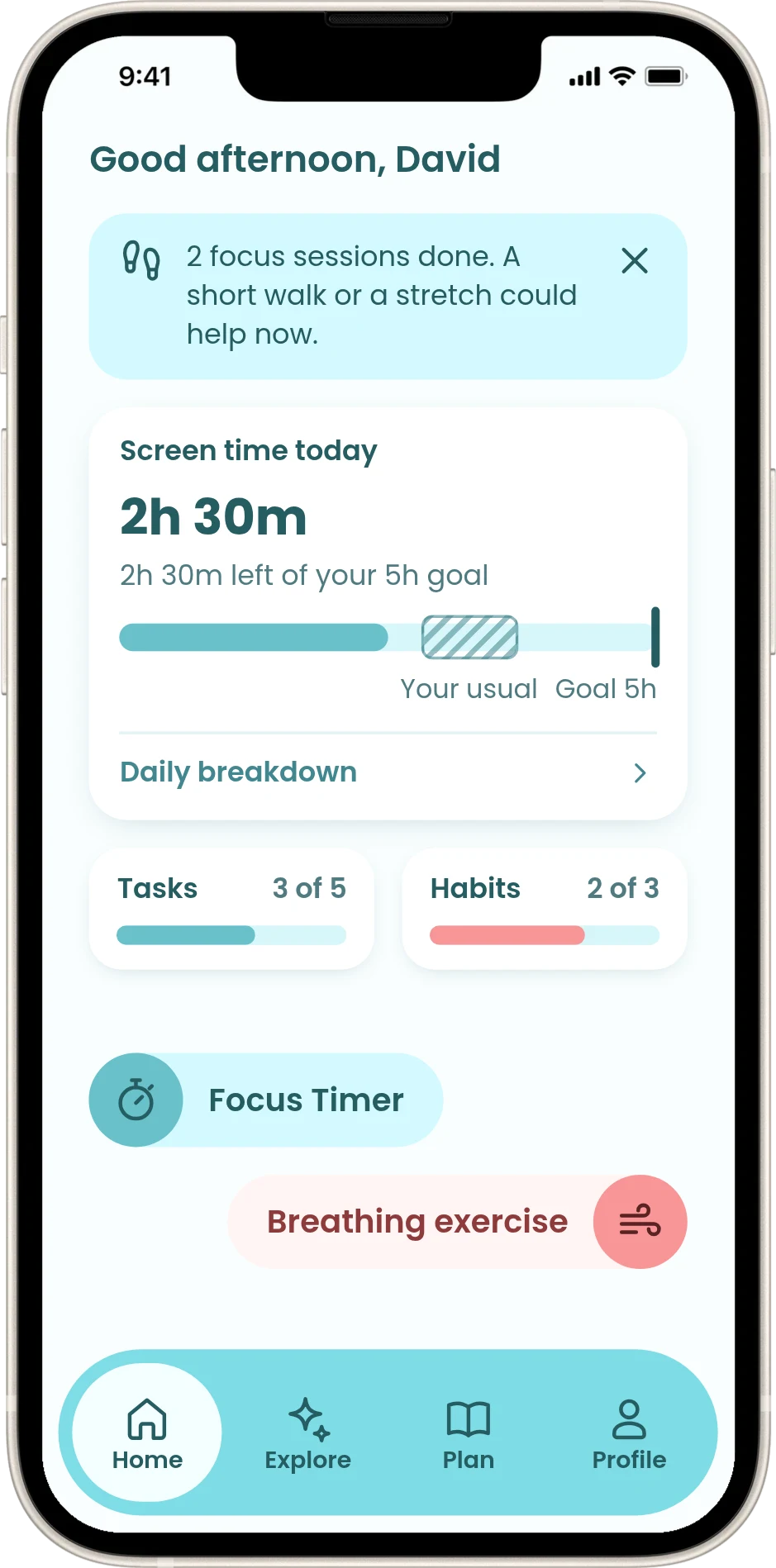
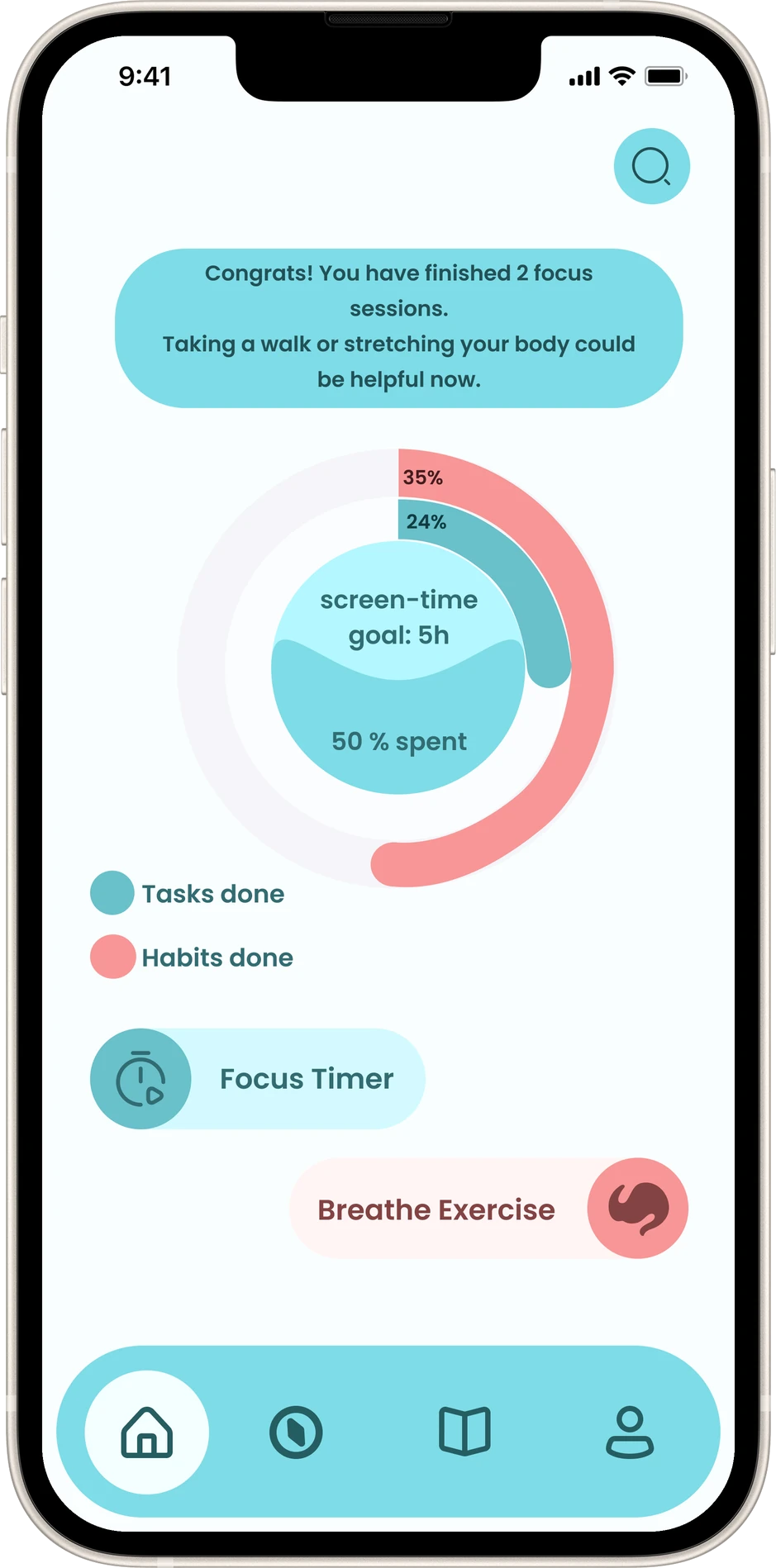
Screen time is a bar you spend, with your goal at the end and your usual amount for this time of day shaded in. Tasks and habits each get a small progress bar. Below that there are only two buttons, Focus Timer and Breathing exercise, so it's easy to decide what to start (Hick's law).
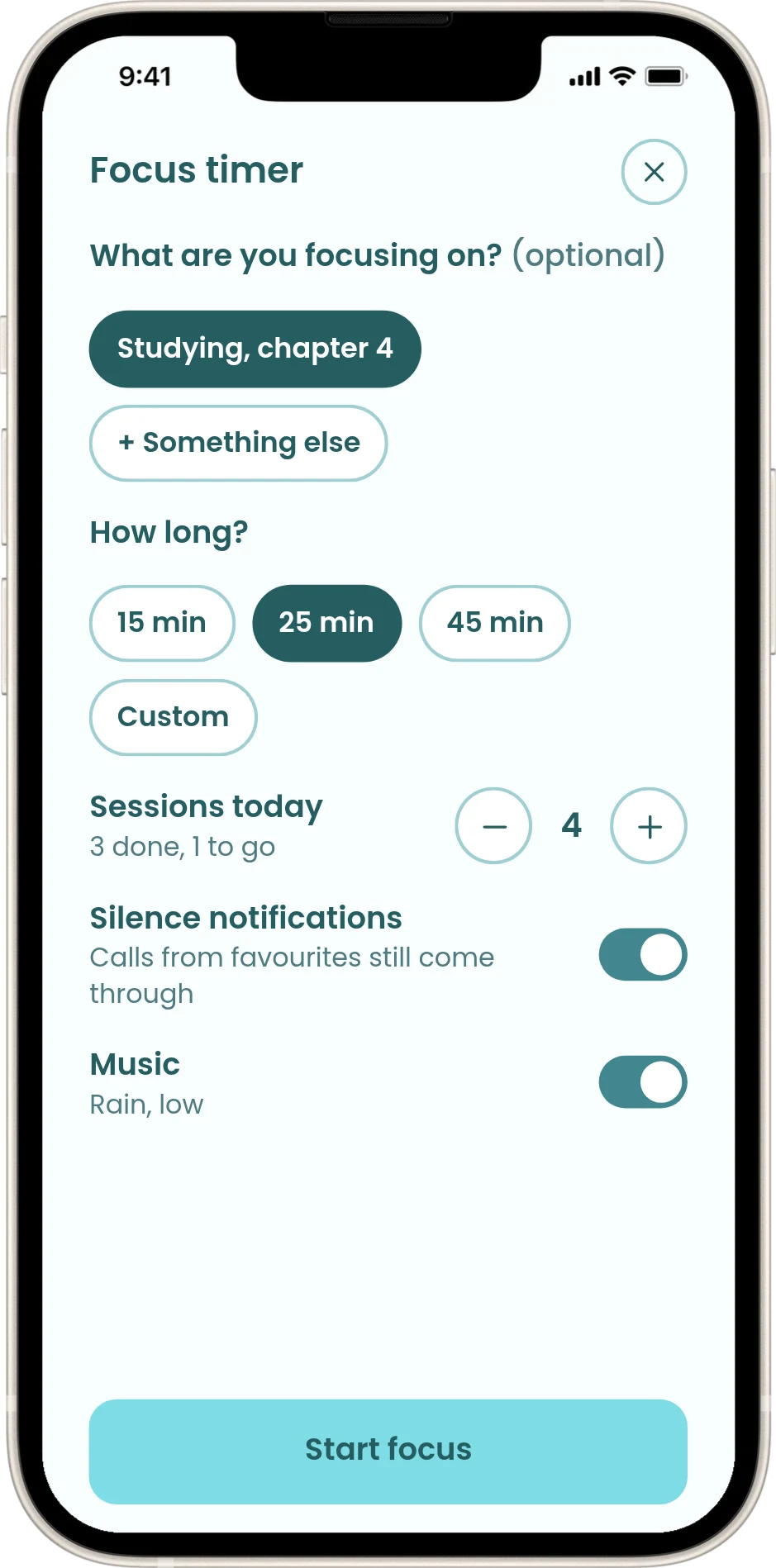
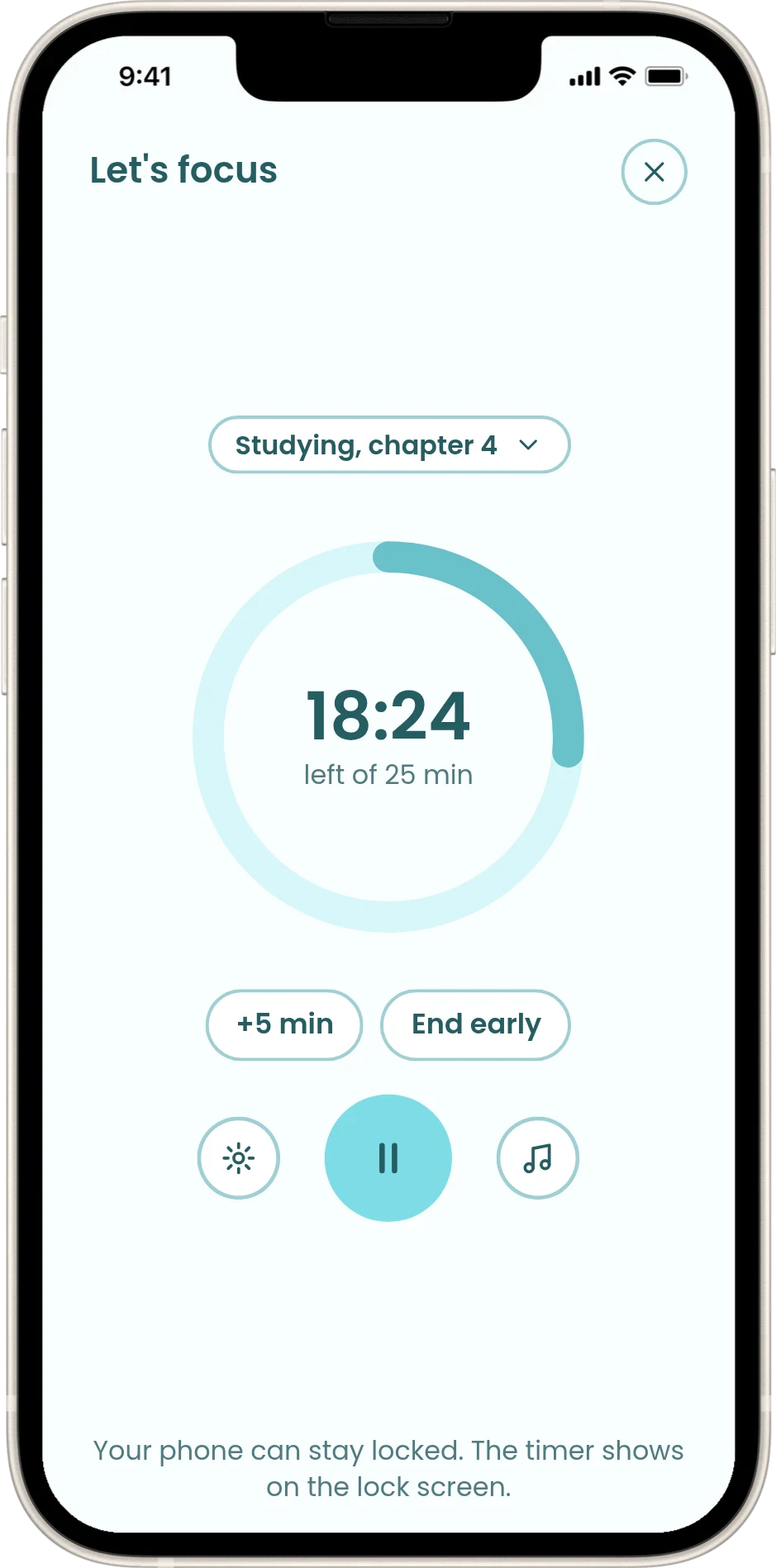
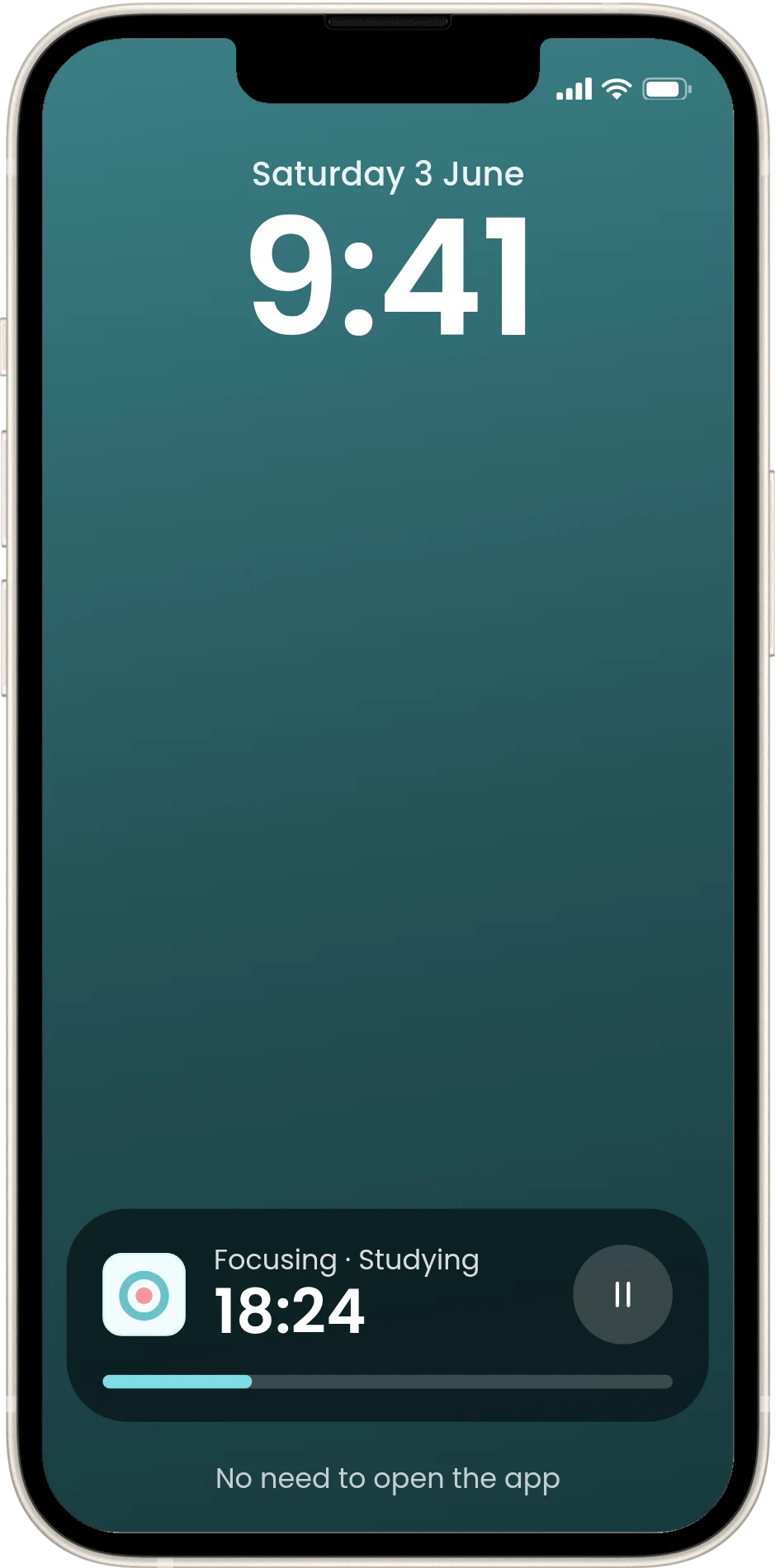
Pick what you're focusing on, how long and how many sessions, and notifications go quiet. The timer fills the screen, and you can add five minutes or end early. While designing it, I realised people would unlock their phone just to check the timer, which is the habit the app is trying to break, so the timer also shows on the lock screen.
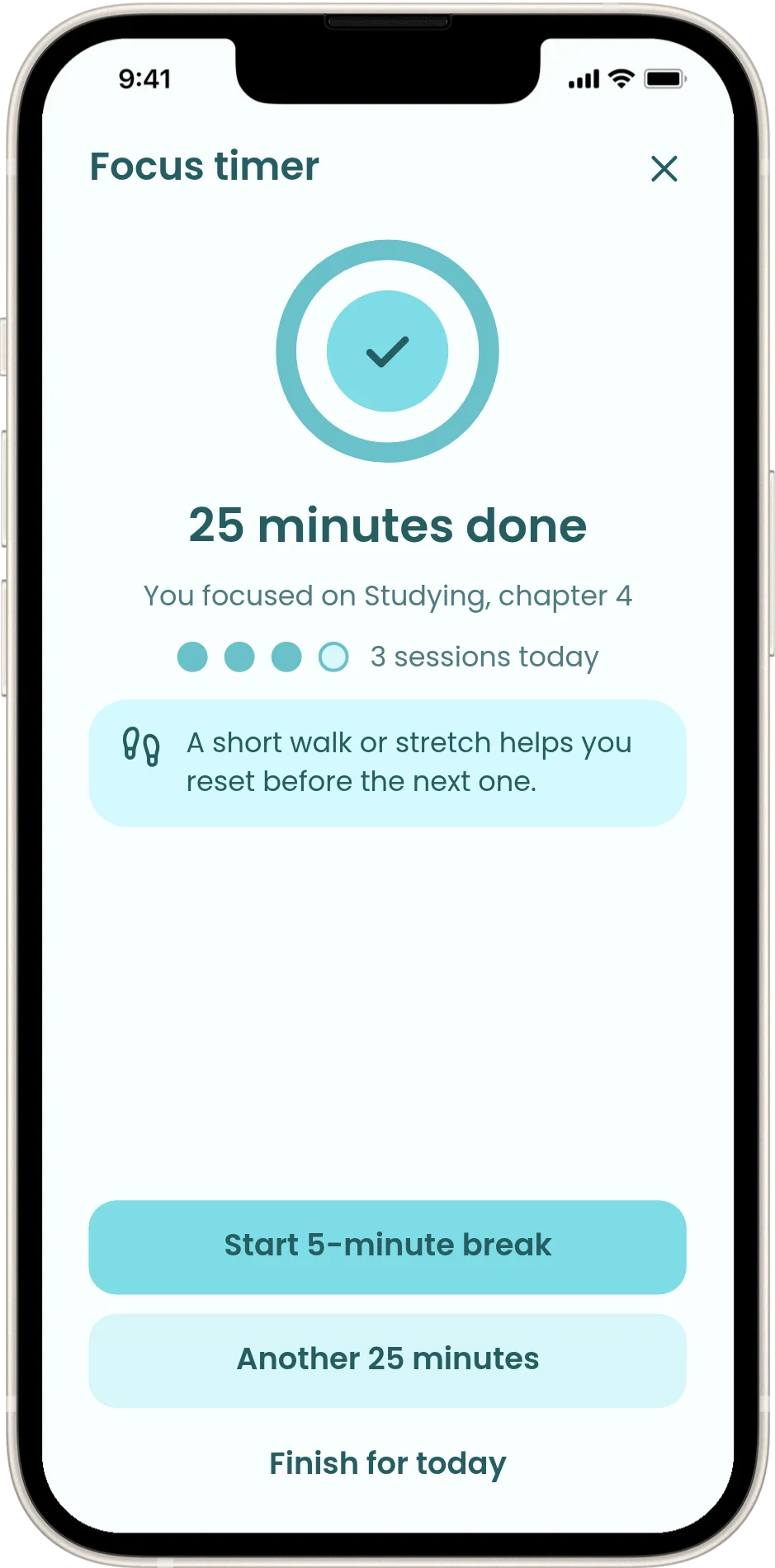
The end screen says what you focused on and shows today's sessions as dots, then offers a break before the next one. In my first design the timer just stopped. Giving the end its own screen makes finishing something you can see, which matters more with ADHD.
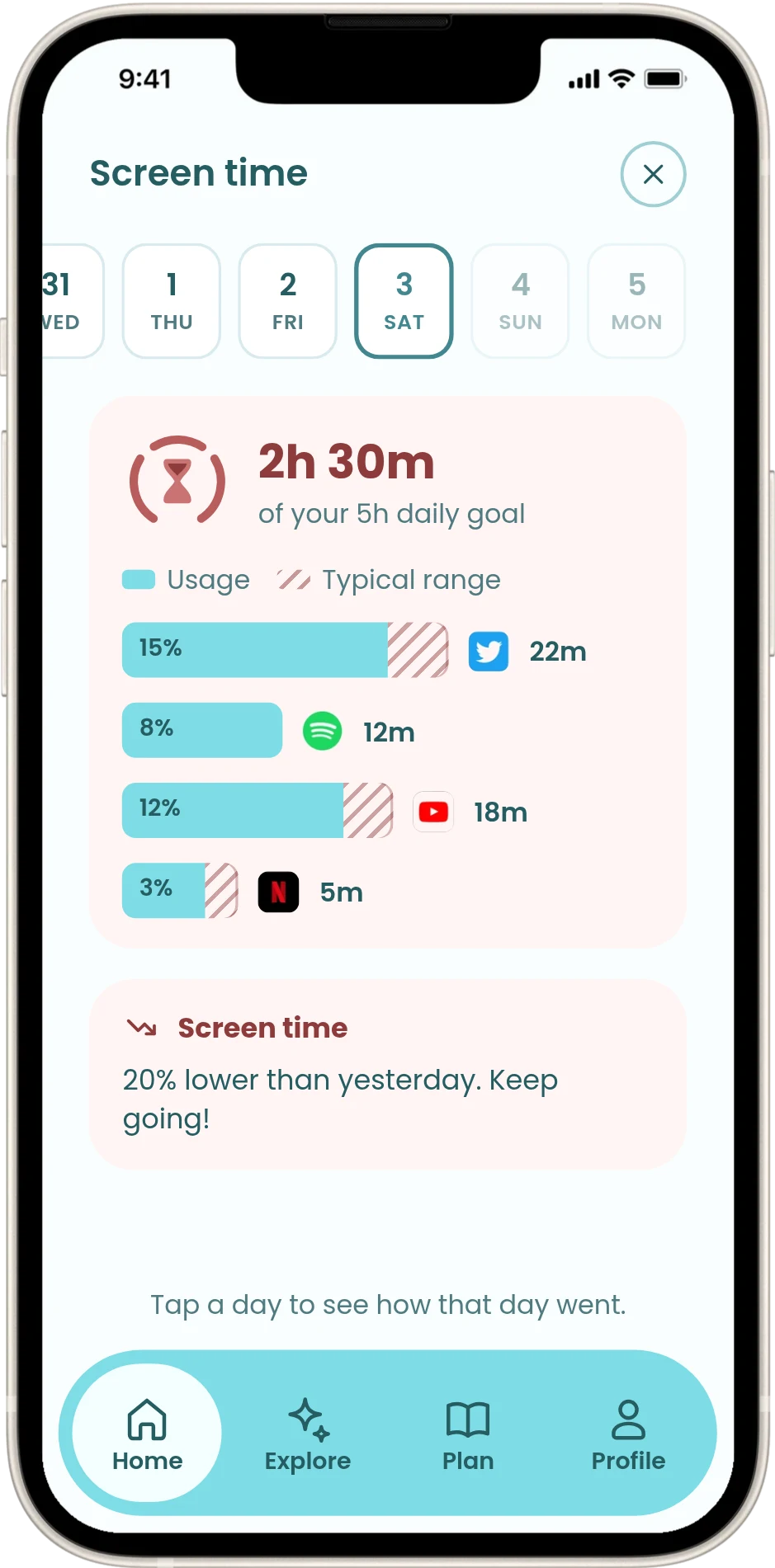
Each app's bar shows its share of the day, with your usual range shaded at the end, so you're compared with your own normal. Swipe the dates to look back. Going over your goal is when an app is most likely to feel judgy, so I designed that moment too: the bar runs past the line, and a soft card offers two quiet minutes.
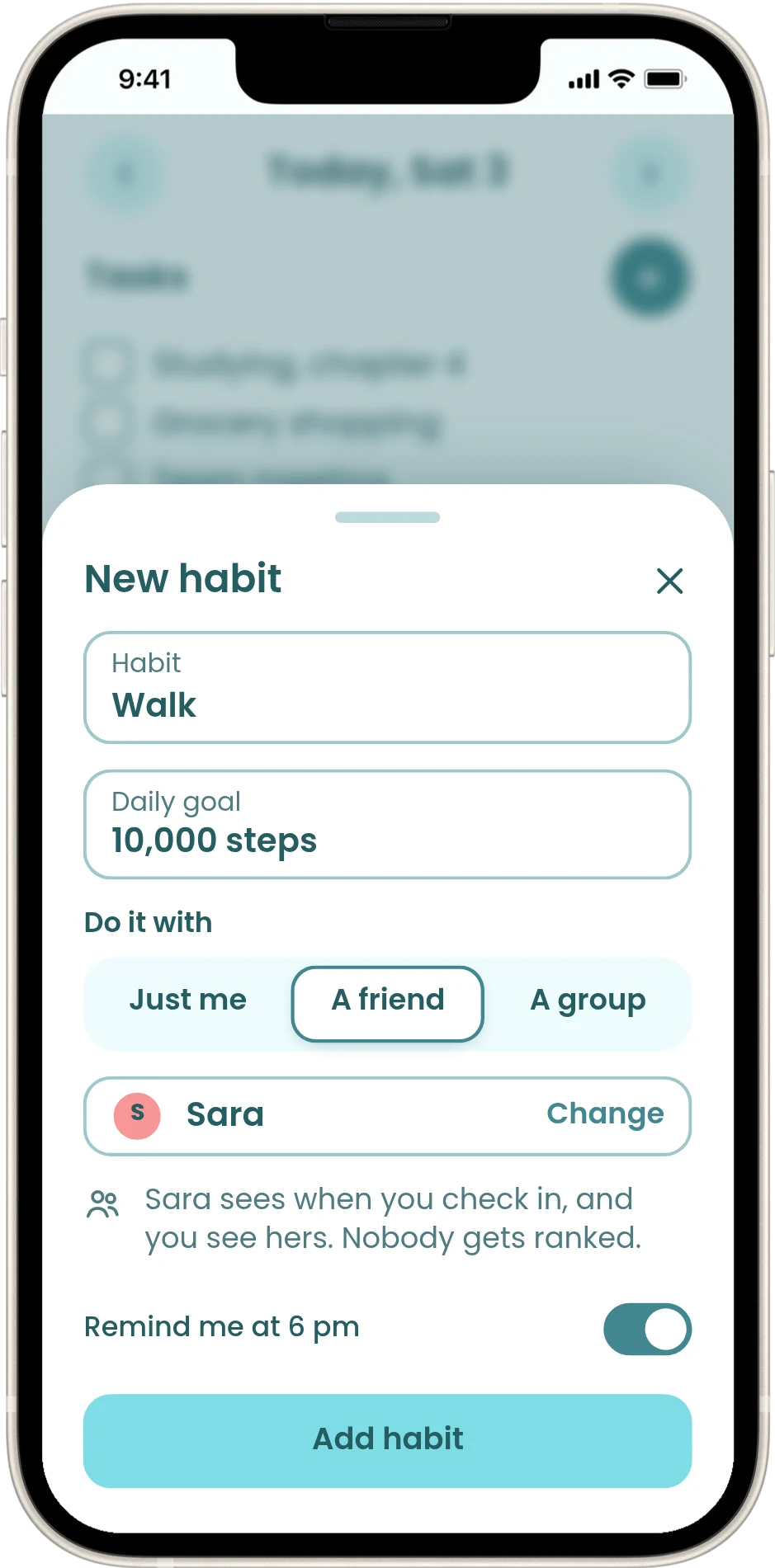
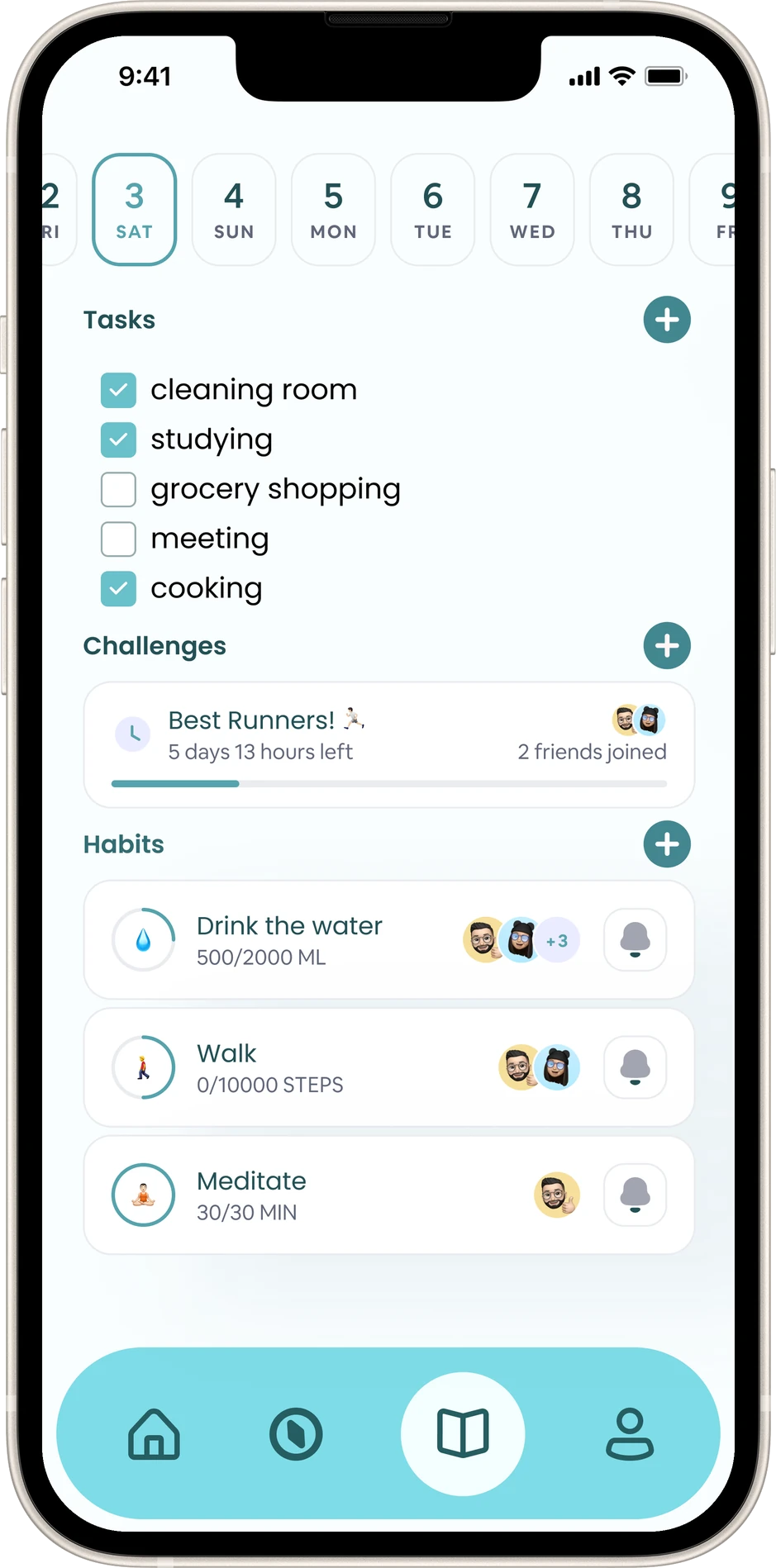
When you add a habit, you choose to do it alone, with a friend or with a group. Friends see each other's check-ins: "You both checked in 4 days this week." Doing things alongside someone helps many people with ADHD get started.
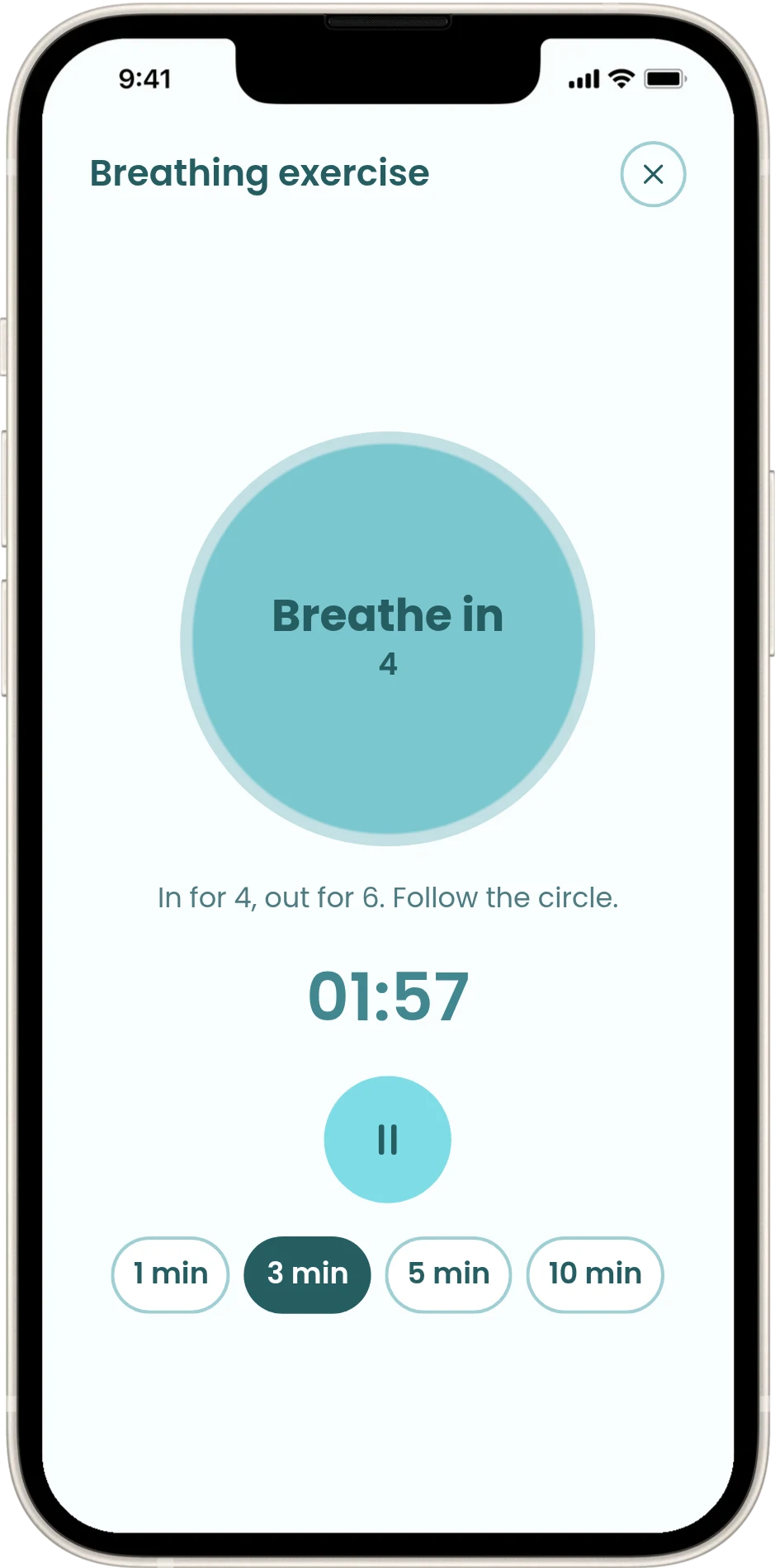
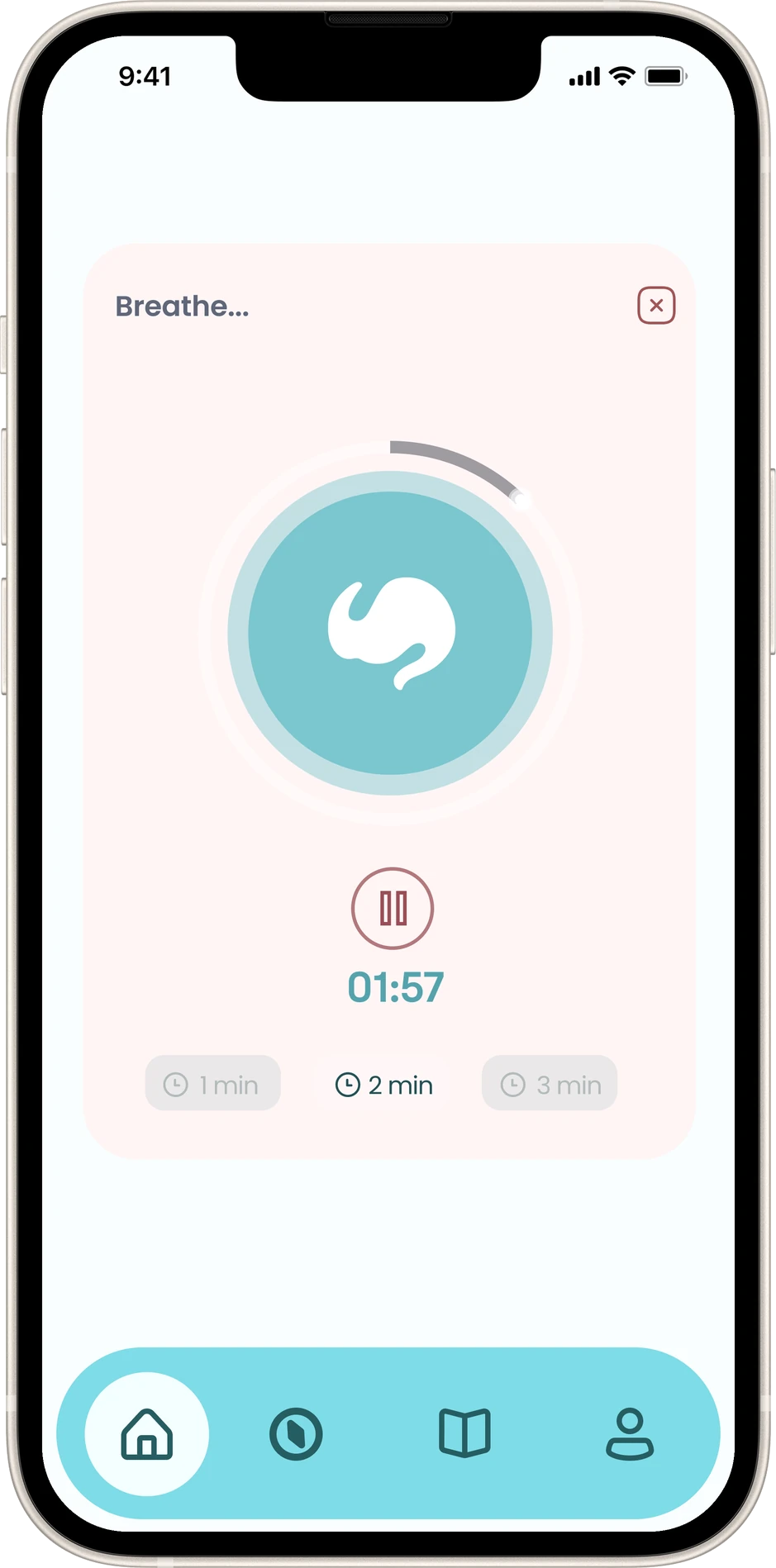
The circle grows and shrinks and says when to breathe in and out. Pick 1, 3, 5 or 10 minutes, and use the longer ones to wind down for sleep.
Review and changes
I couldn't test with users, so I reviewed my first design and changed what didn't hold up
Halfway through, I reviewed my first full design like an outside expert would: against the six principles, WCAG contrast and Apple's guidelines, counting taps and looking for moments I hadn't designed yet.
Home
One ring held tasks, habits and screen time, so a fuller ring looked like success. With screen time, less is better, so I split them into separate bars.
Habits
A "Best Runners!" challenge brought back the competition I'd cut. I kept friends and took the ranking out.
Breathing
There was no cue for when to breathe in or out, and the time options were grey on grey with very low contrast. I added the cue and darkened the options so they pass.
Smaller fixes: labels in the tab bar, a darker teal on the add buttons so they pass contrast, one set of buttons across all screens, and a few typos.
Prototype
A calm app in four tabs, and a prototype you can try
The prototype covers the main paths: focusing, breathing, checking screen time and adding a habit with a friend.
Things to try
- Start a focus session. Tap Focus Timer, pick a length, then Start focus. Add five minutes or end early.
- Lock the phone during a session to see the timer on the lock screen.
- Breathe. Tap Breathing exercise and follow the circle.
- Look back. Tap the screen-time card, then swipe to another day.
- Add a habit with a friend from Plan.
- Go over the goal with the evening switch under the phone.
Every screen
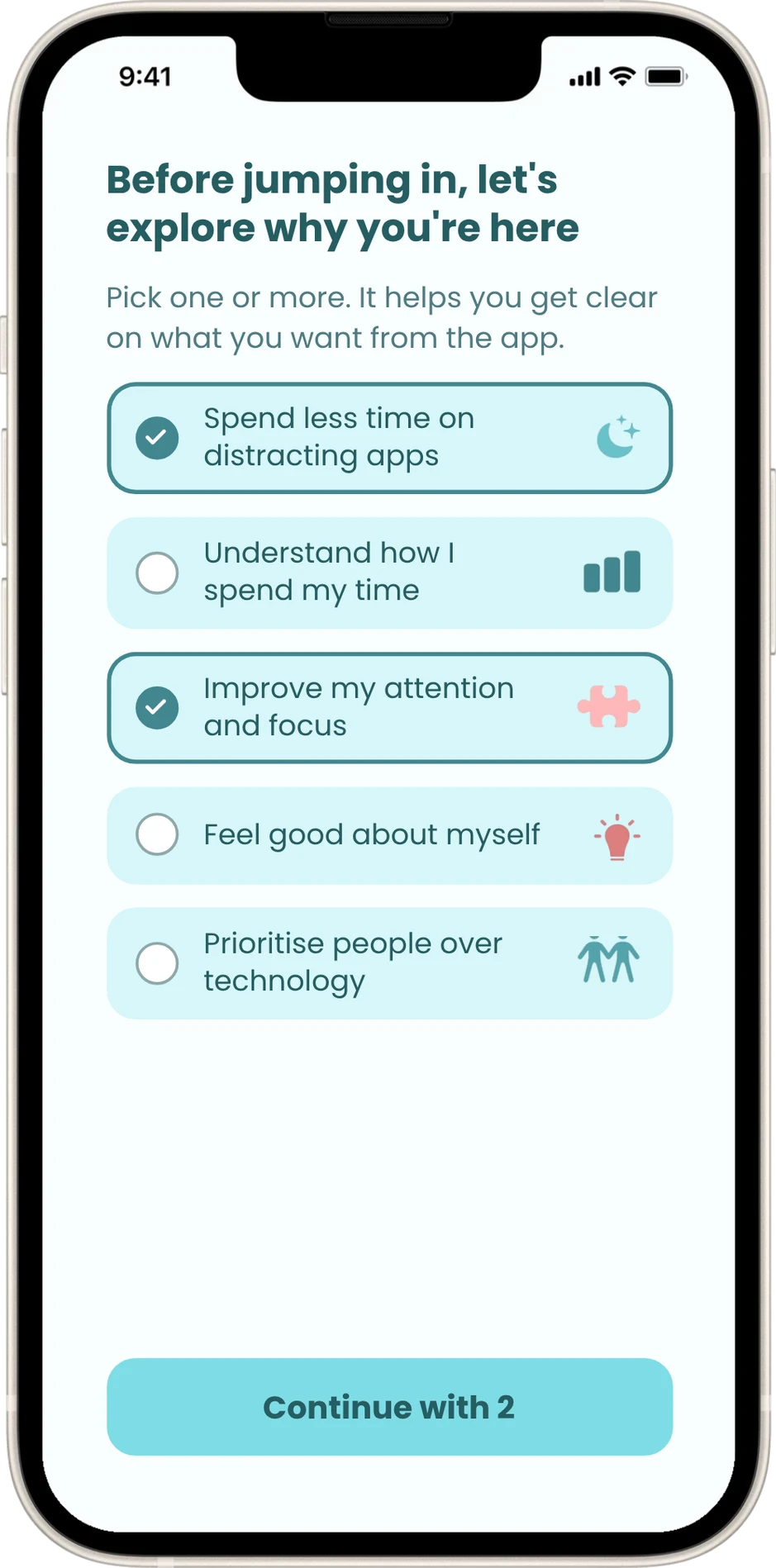
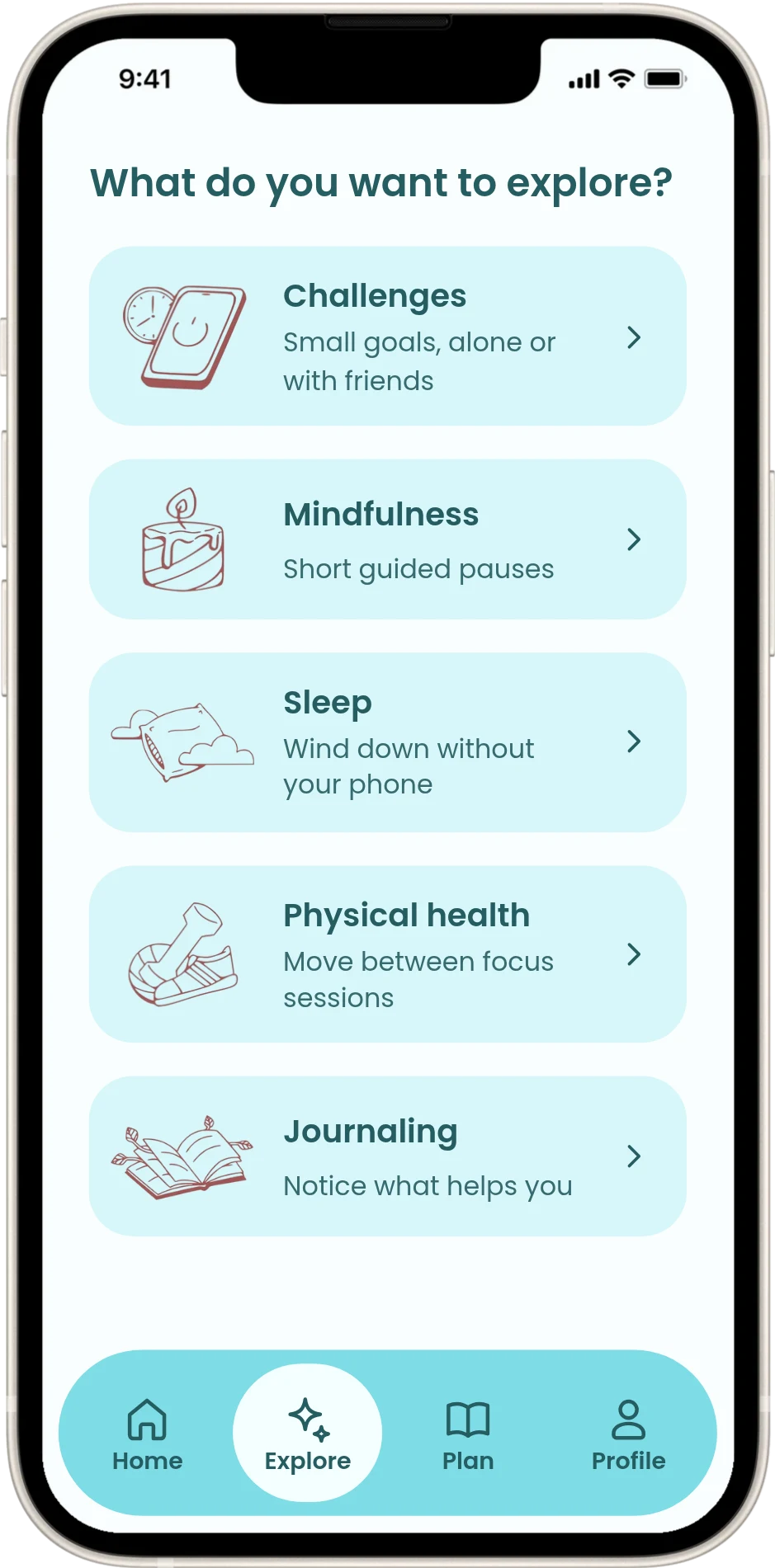
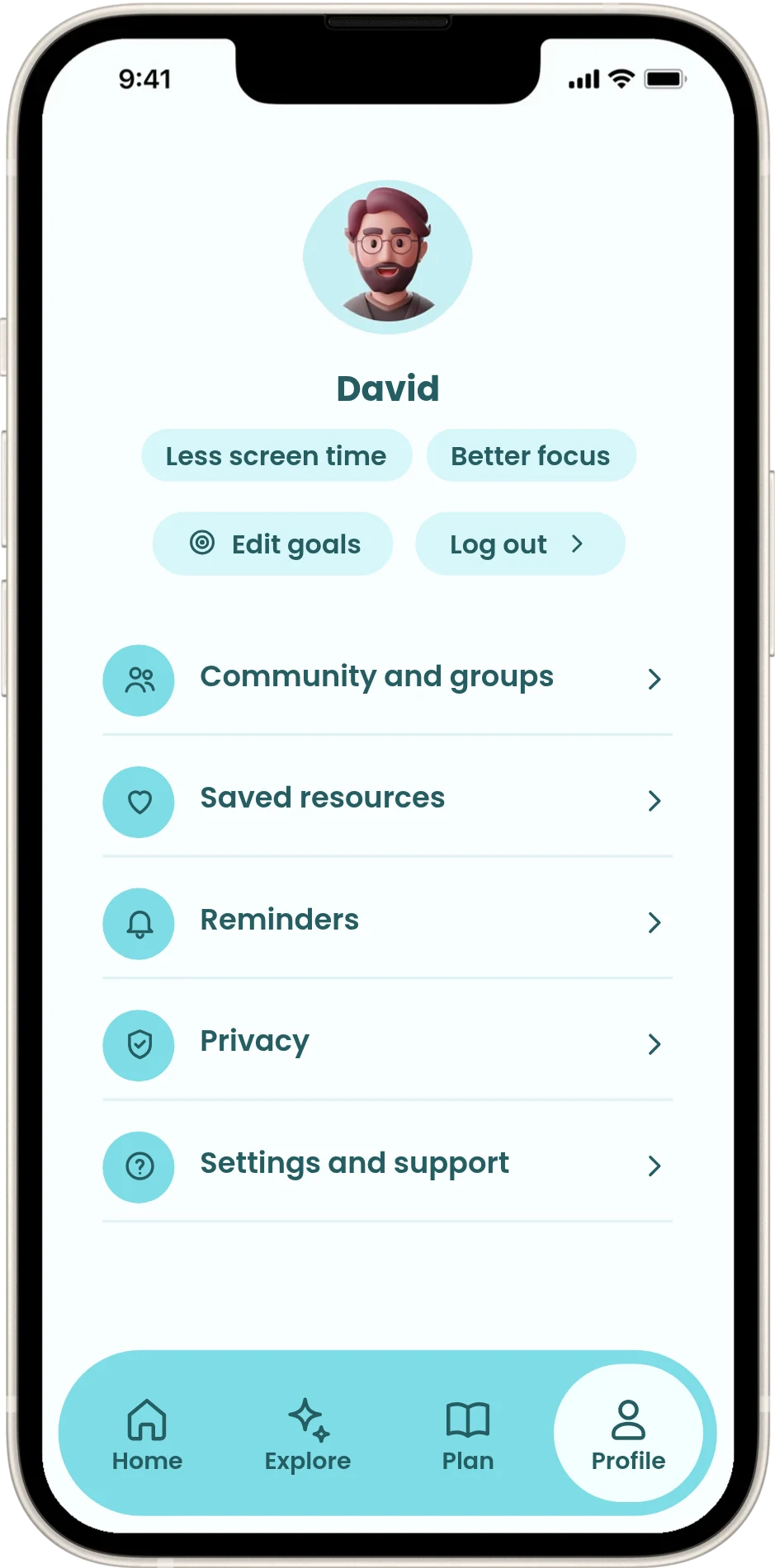
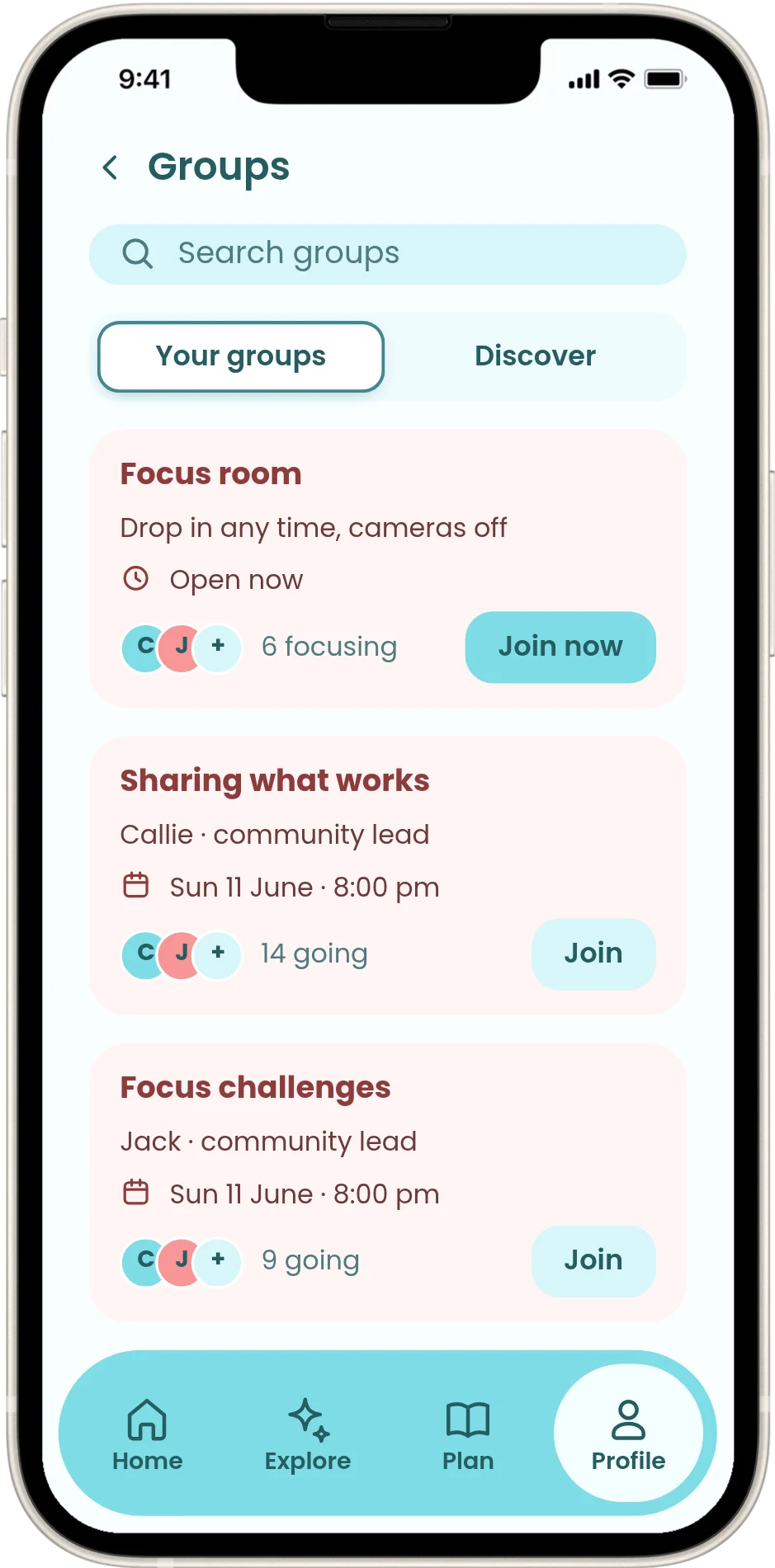
Scroll sideways to see them all.
Reflection
What I learned, and what's still to test
What I learned
Most of the work on this app was deciding what to leave out, and every feature I cut made the rest easier to use. I also learned that motivation is easy to get wrong. Friends and visible progress helped, but a ranking quickly turned into pressure. Checking my first design against my own principles caught things I'd missed, like a ring that looked better the more screen time you had.
What I'd do next
Test the prototype with a small group of adults with ADHD for a week, to see whether they can start a focus session in one tap and whether the screen-time card feels encouraging or judgy. After that, design what's inside Explore and check the app with VoiceOver and large text.